How to use PGFlyer on Windows
iFlowGo stands as a specialized location changer built for iOS users. It integrates seamlessly with mainstream apps like Pokémon GO 🎮, Monster Hunter Now, and Snapchat, enabling GPS position modifications without requiring any jailbreak on your device.
This tutorial takes you through the entire setup of iFlowGo for the first time, covering Bluetooth pairing 🔗, and both core features (Joystick & Teleport). Follow along to avoid typical connection hiccups and start spoofing instantly.
⚠️ Important:
Even for short jumps, enabling NextDNS is strongly advised for maximum reliability (proven to maintain spoofing for 10+ hours).
If your teleport stays within 15 km, simply follow Steps 1–8 below.
For teleports exceeding 15 km, you must also complete Step 9 (Configure NextDNS for Teleports Over 15 km) to ensure location stability.
1. Before You Begin
Please confirm you have these items ready:
- ✅ iFlowGo is installed and functioning correctly.
- 🔑 A VIP or trial account (a valid account is mandatory for Bluetooth connectivity).
- 📱 An iPhone (iOS) together with a 💻 Windows computer.
- 🔵 Ensure your iPhone is already paired to your Windows PC via Bluetooth before launching iFlowGo.
2. Turn Off Bluetooth Connections
It is essential to disable Bluetooth prior to connecting; otherwise, the pairing may not succeed.
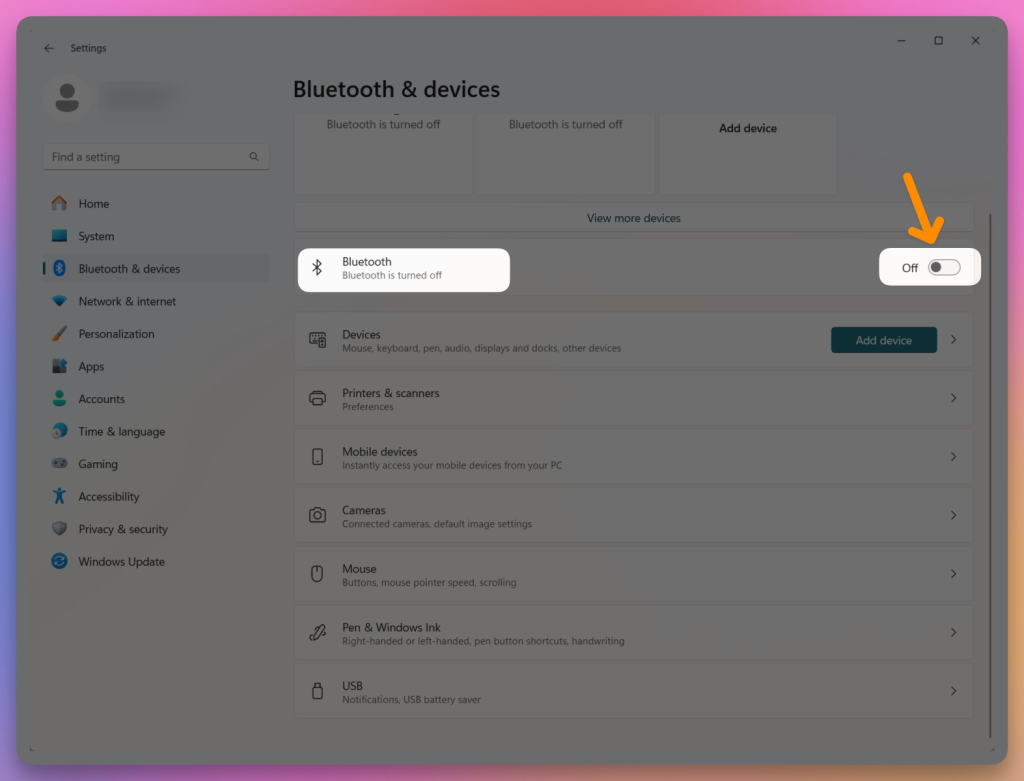
- On your computer 🖥️: Switch off Bluetooth → Verify no devices remain connected.
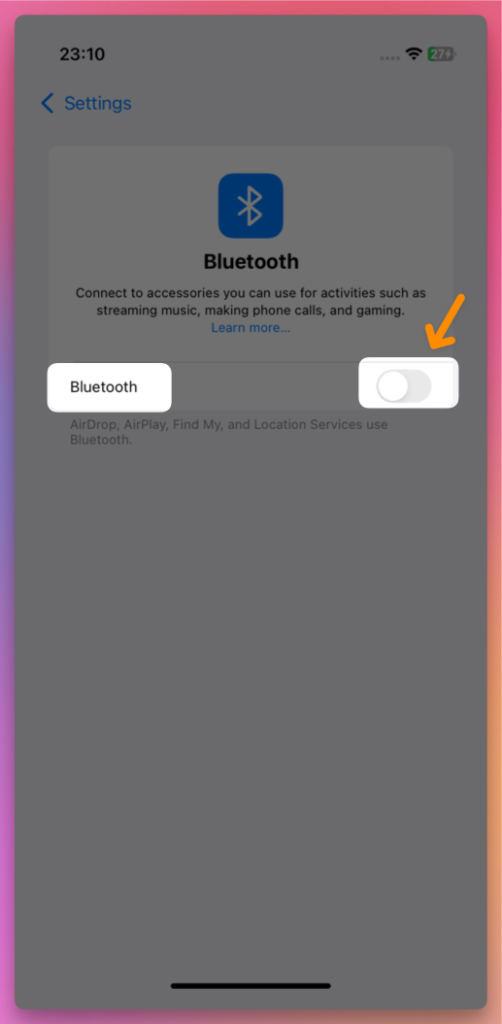
On your iPhone 📱: Turn Bluetooth off.
- Now, pause for 5 seconds.
3. Turn On Bluetooth on Your Computer and iPhone
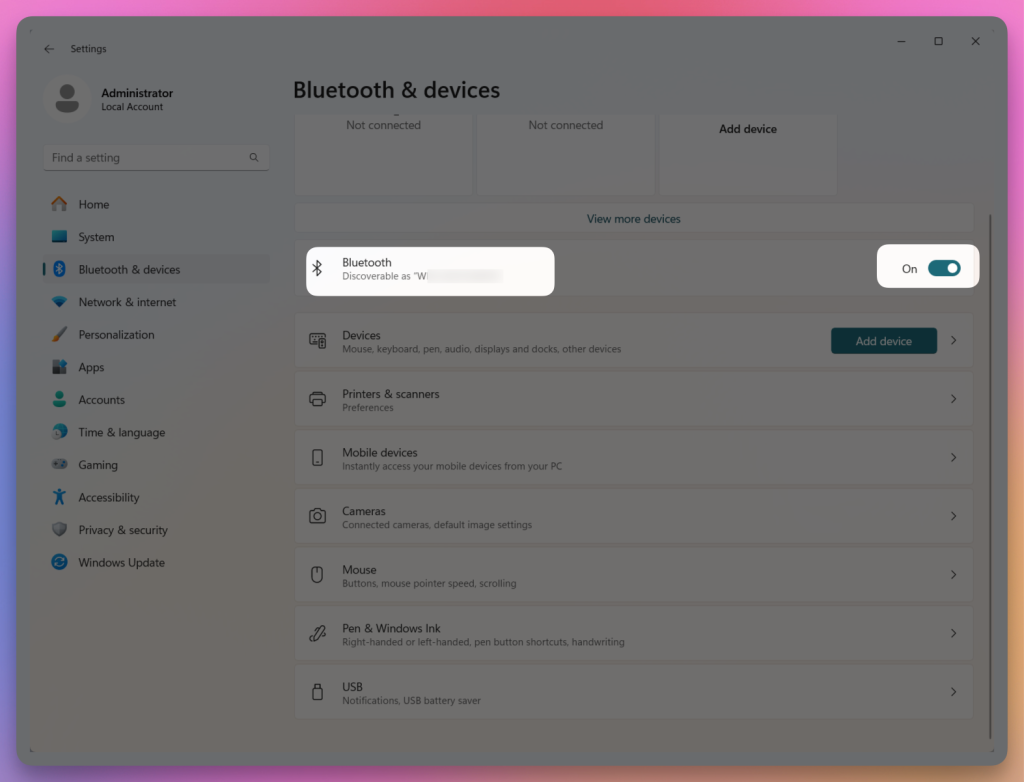
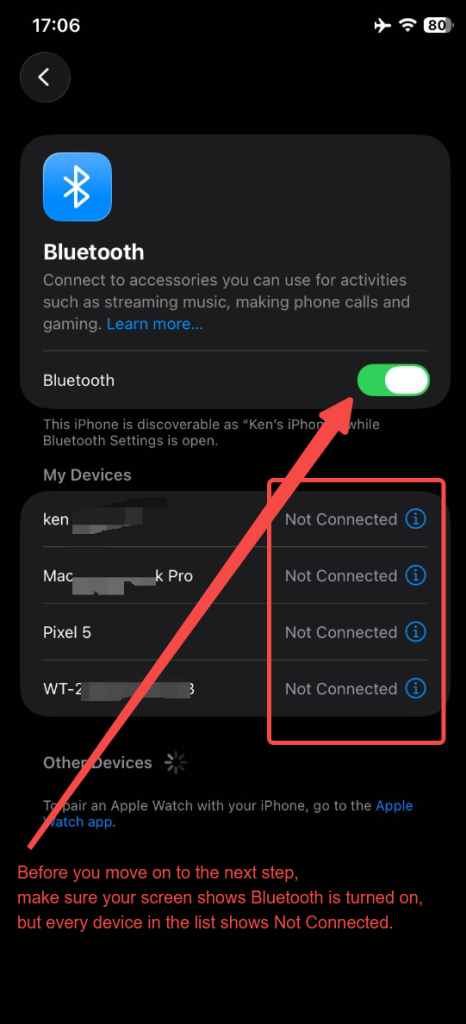
Reactivate Bluetooth on your computer, and also enable Bluetooth on your iPhone. Proceed to the next step only when both devices show Bluetooth as on, yet every listed device displays Not Connected.
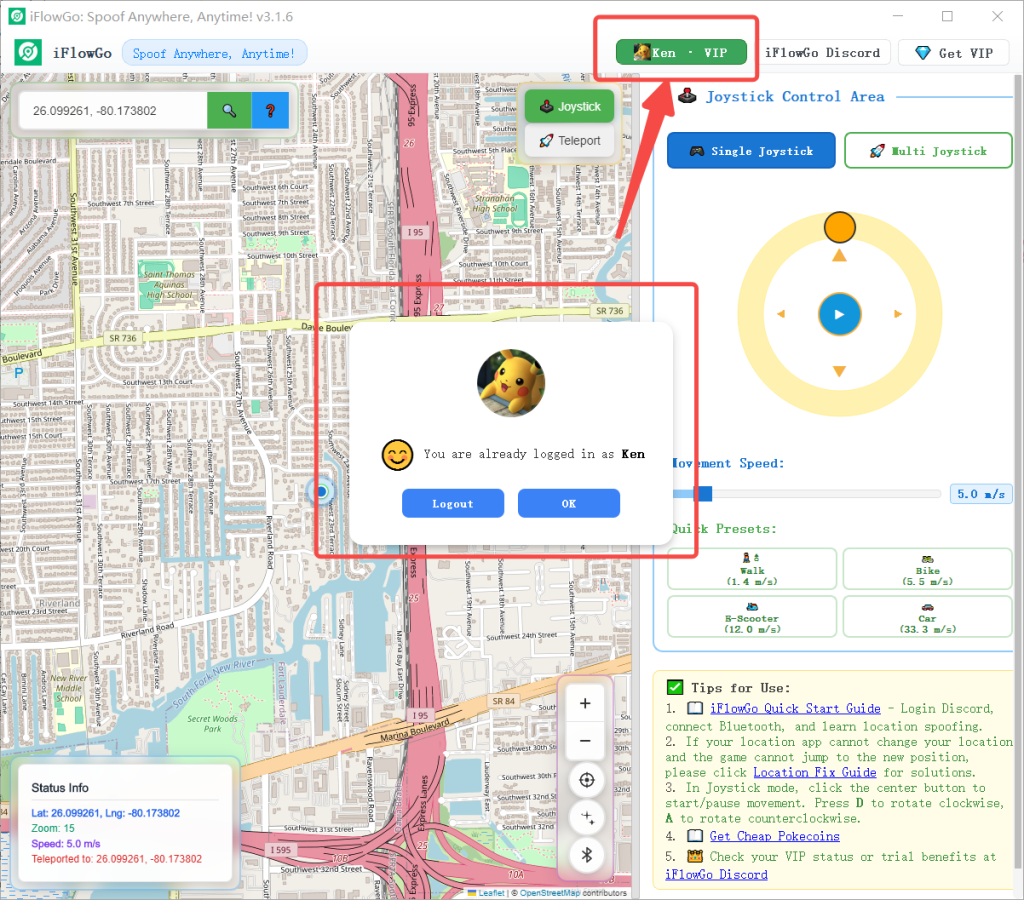
4. Launch iFlowGo and Log in with Discord
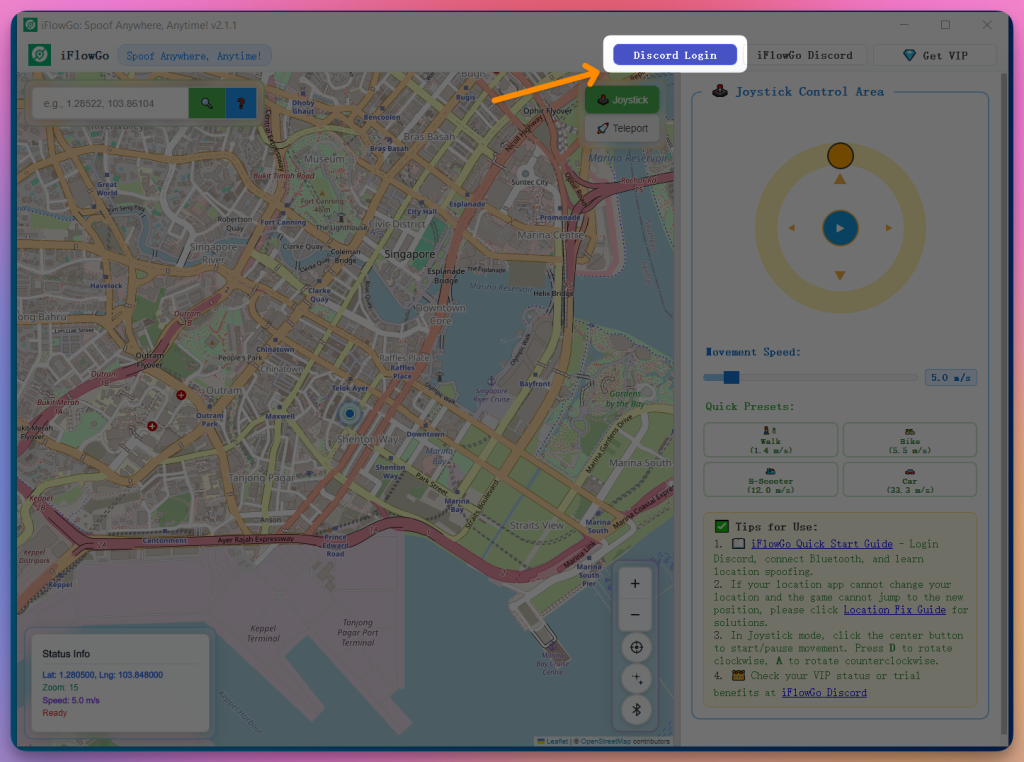
- Start iFlowGo → Select Discord Login.
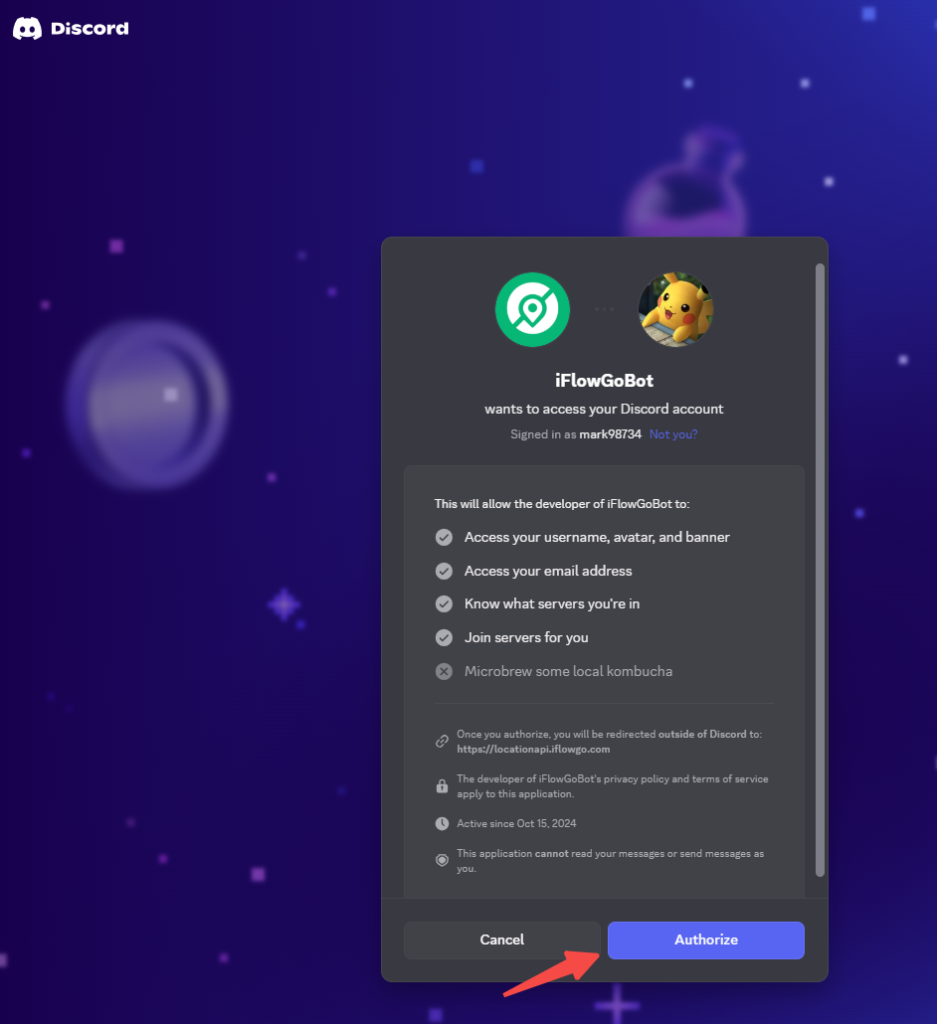
- Your browser will open the authorization page → Click Authorize ✅.
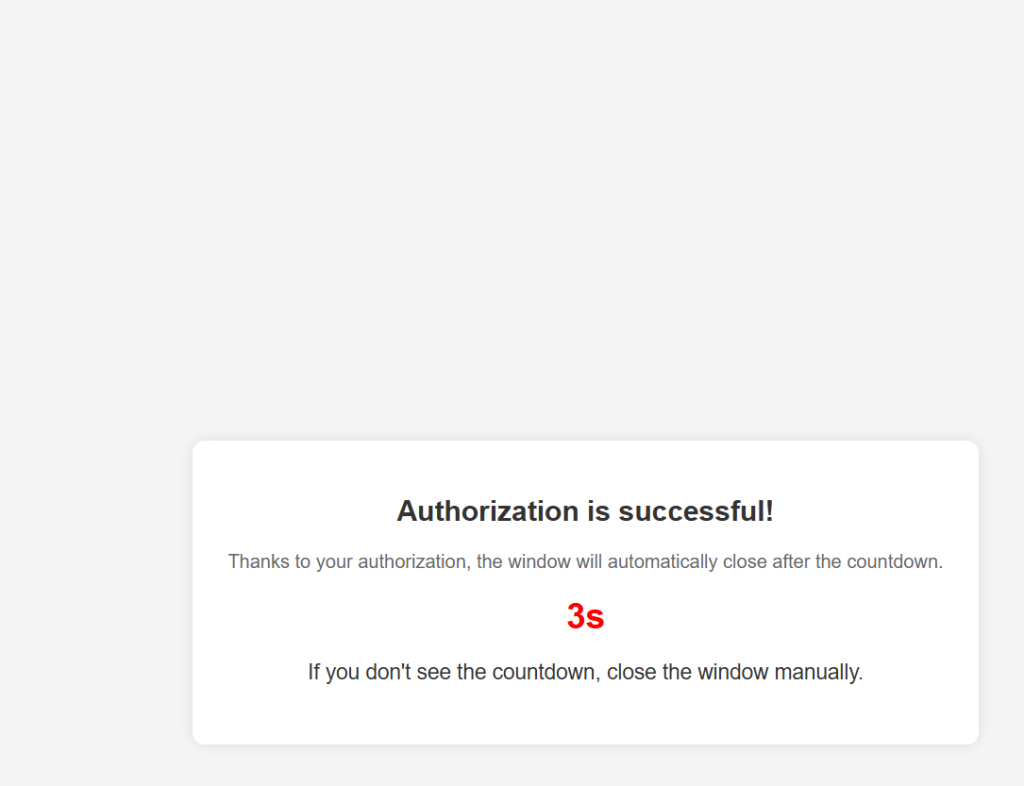
- Return to iFlowGo – it will log you in automatically.
5. Bluetooth Connection Steps (Important)
- Confirm Bluetooth is active on your PC💻 and your iPhone 📱, but every device in the Bluetooth panel shows Not Connected.
- Watch the Bluetooth connection video guide:
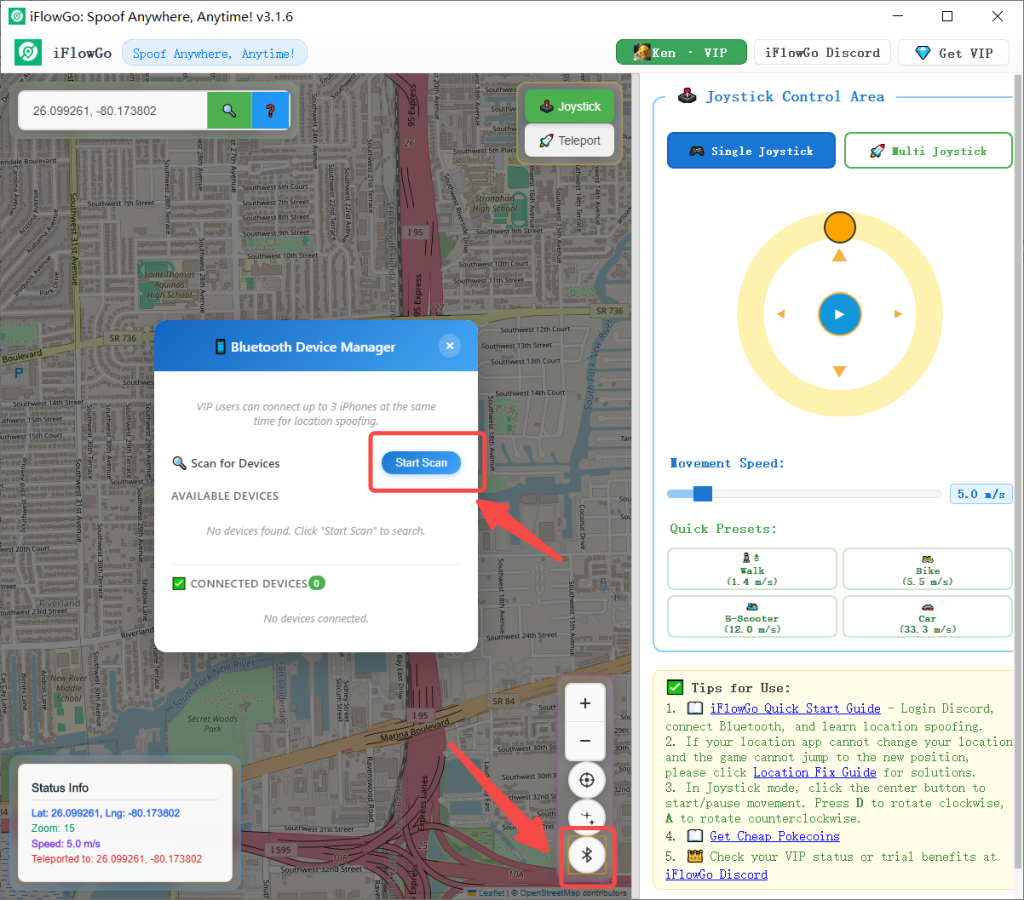
- Inside iFlowGo, tap the Bluetooth icon → then press the Start Scan button.
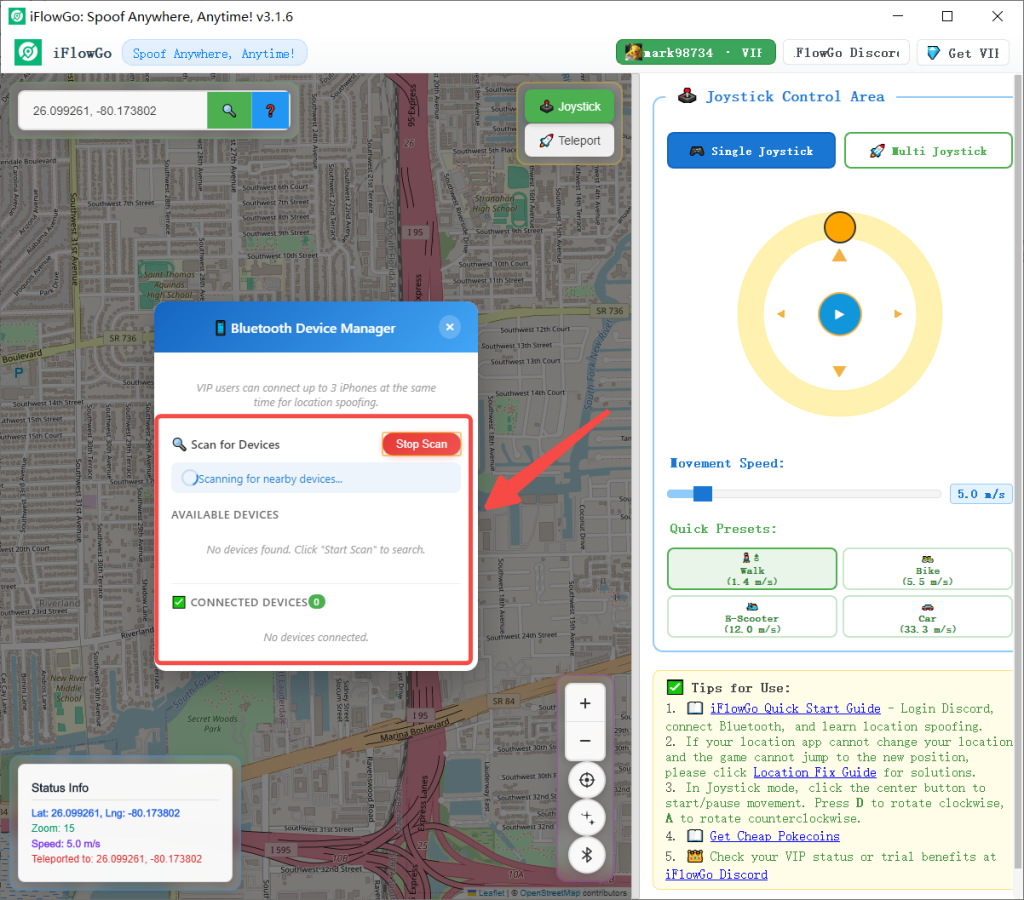
- A list of nearby Bluetooth peripherals appears, and you will notice their status changing from Offline to Online.
- Note: After clicking Start Scan, your devices should typically appear within 30 seconds. Should 90 seconds pass with no results, verify that Windows Bluetooth (or your Bluetooth adapter) is enabled. If it is on but still nothing appears, turn off Bluetooth (or remove the adapter), wait approximately 40 seconds, then re-enable it or reconnect the adapter.
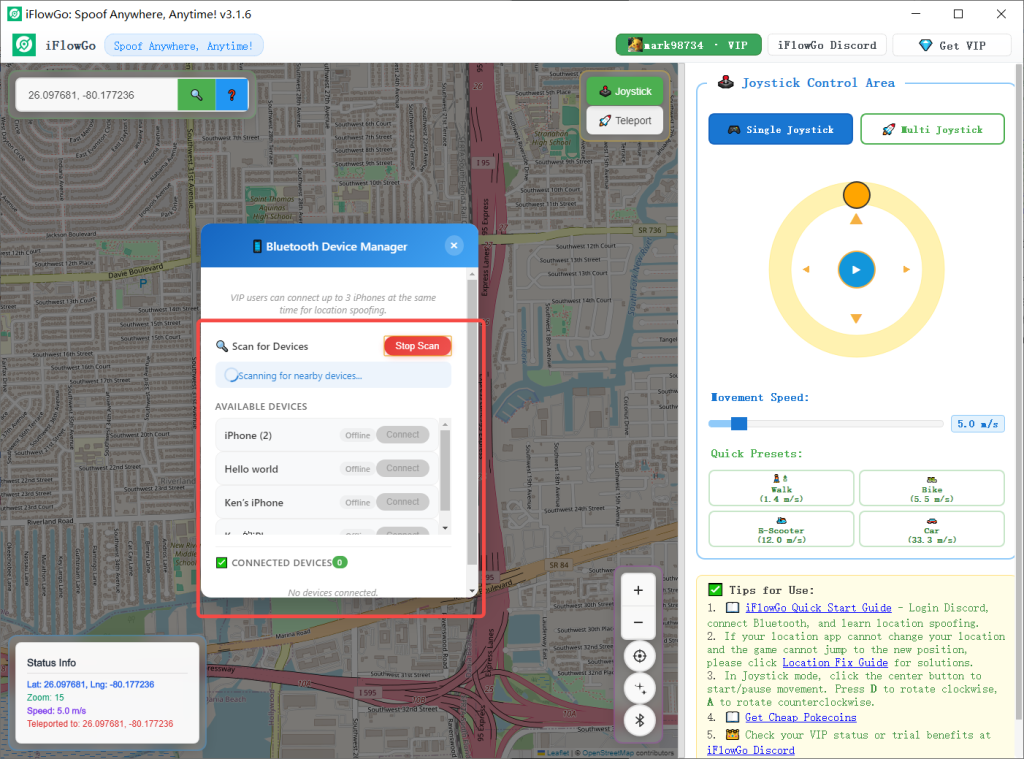
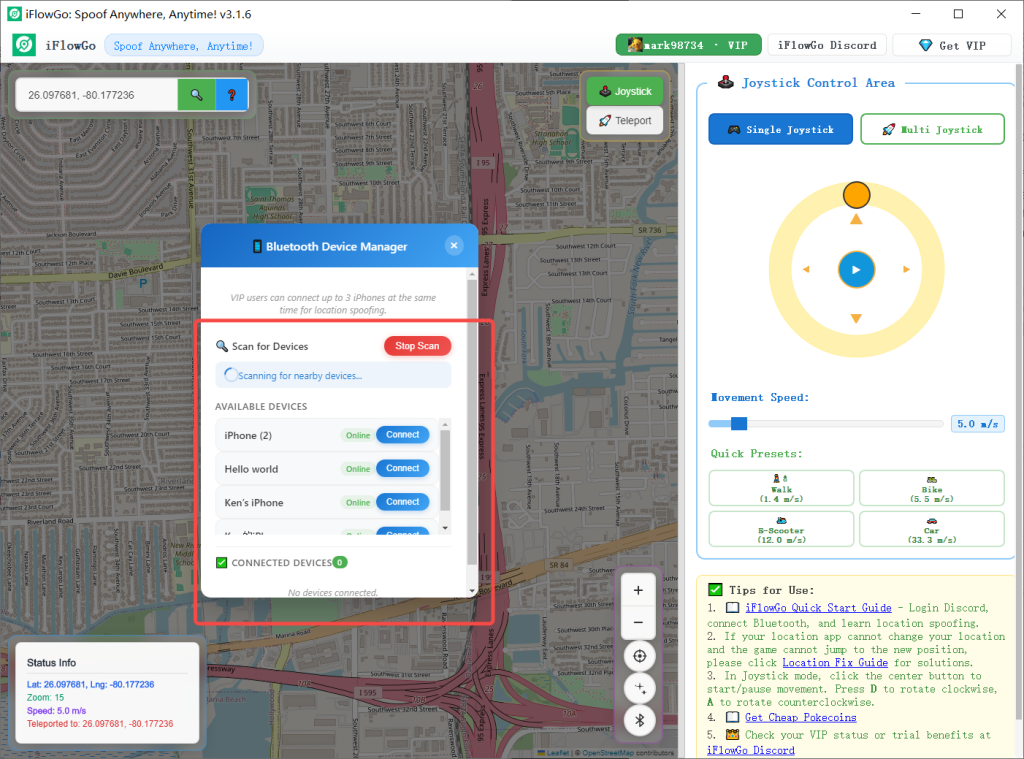
- Next, select one of the devices from the Bluetooth list and click the Connect button to initiate pairing. A Connecting pop‑up will appear – allow 3 to 20 seconds for the process to complete.
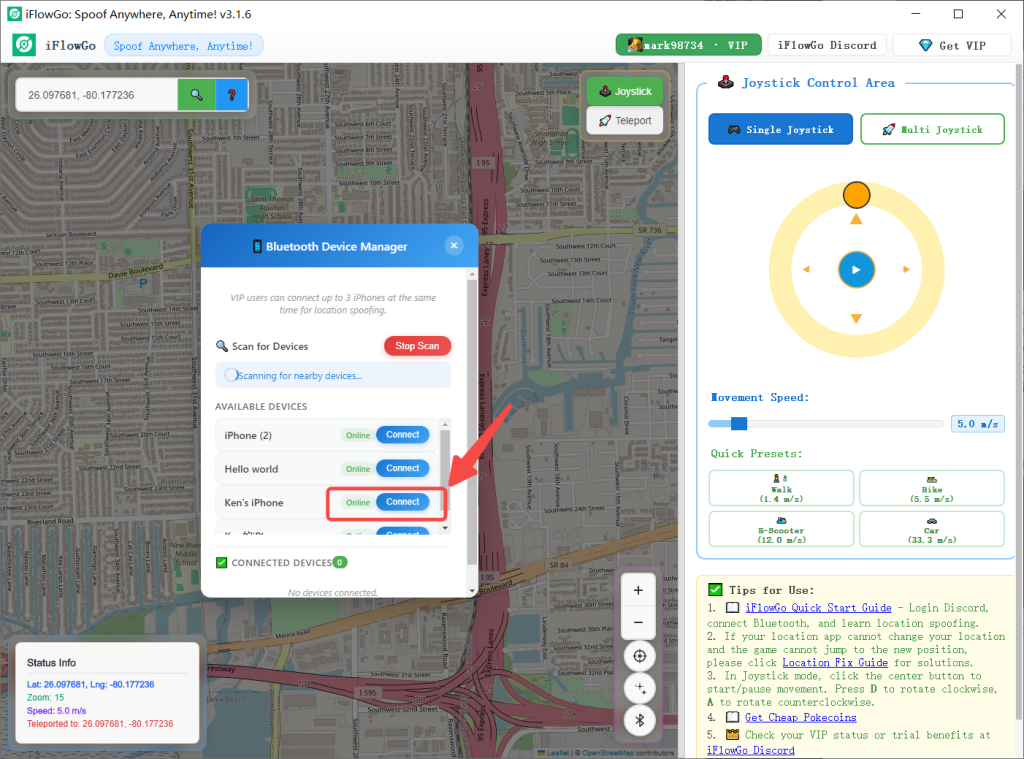
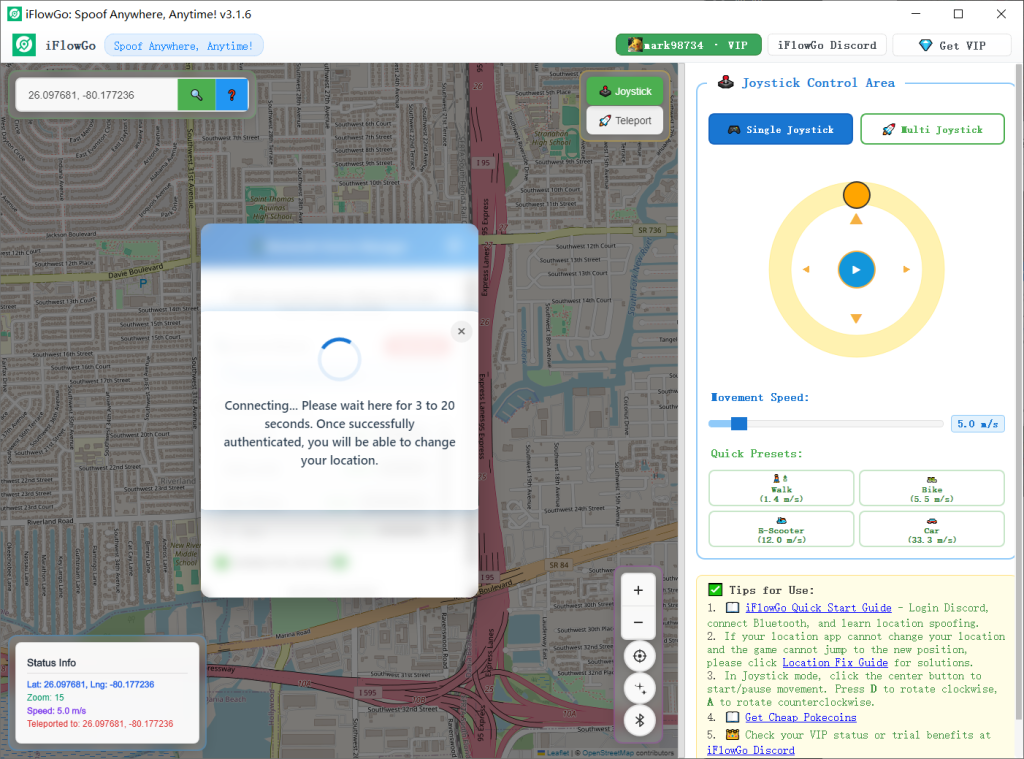
- Once the Bluetooth link is established, location initialization begins – wait about 12 seconds before you may alter your position.
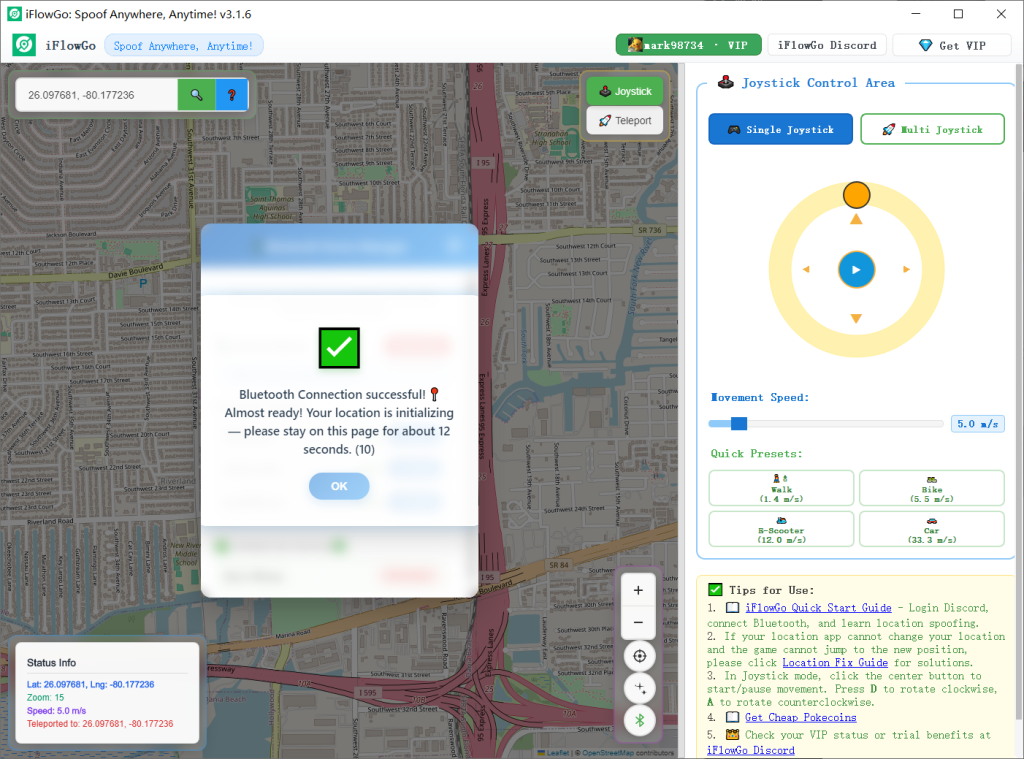
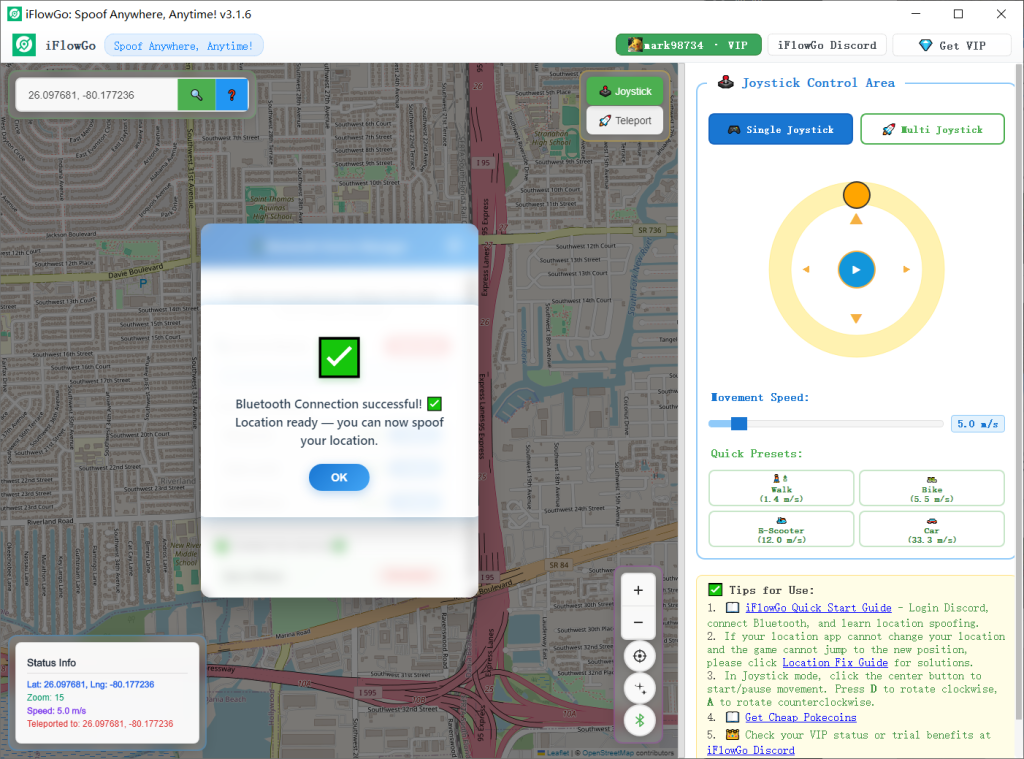
- Afterward, you will see a message reading "Bluetooth connected successfully, location initialized", along with "You can now spoof your location" – this means you are ready to proceed.
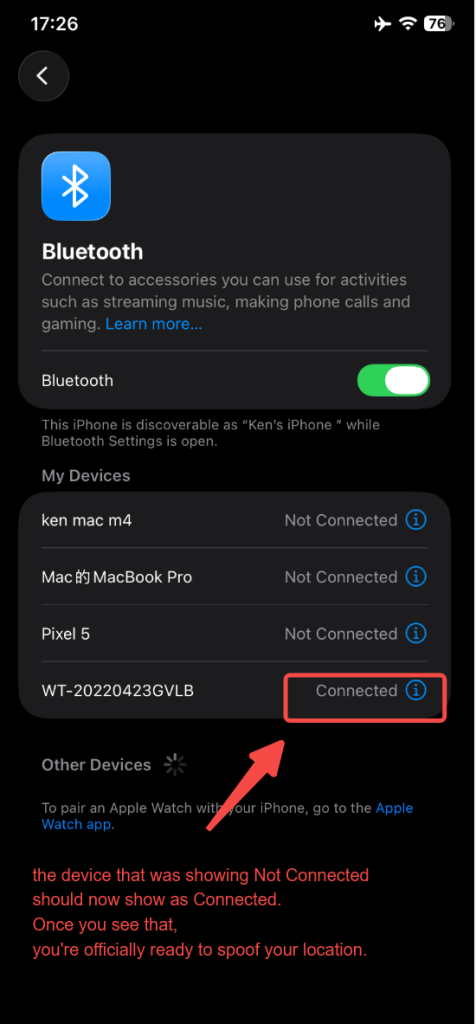
- Additionally, check your iPhone's Bluetooth list – the device that previously showed Not Connected should now indicate Connected. When you see this, you are officially prepared to spoof your location.
6. Choose a Location Mode
- Joystick Mode 🕹️: Best suited for gradual movement in Pokémon GO, mimicking natural walking 🚶♂️.
- Teleport Mode 🚀: Jump instantly to any point within 15 km, ideal for fast access to monster spawns in Monster Hunter Now 🐲.
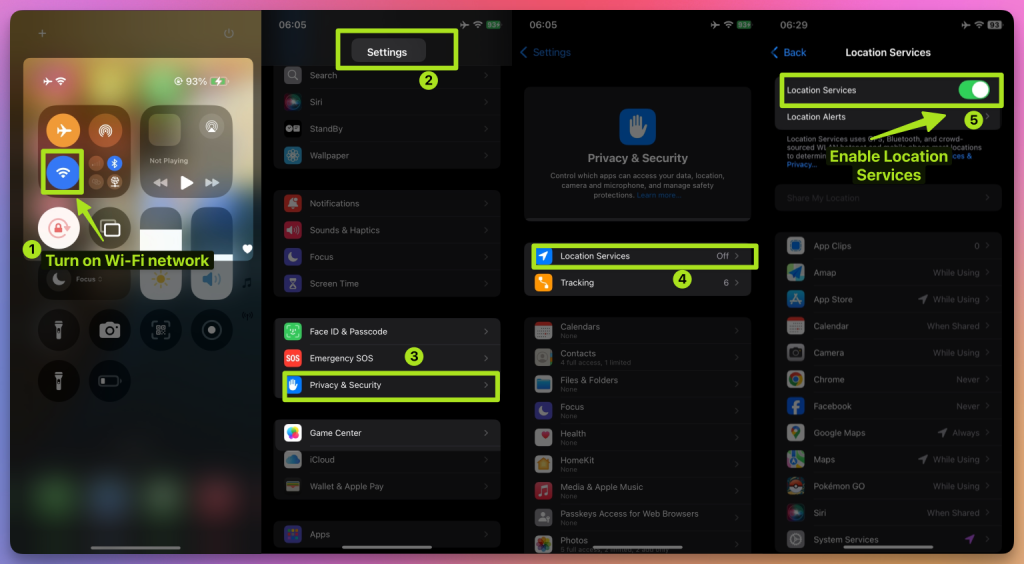
7. How to Fix the Map Not Showing Your Location
If the map fails to display your current position:
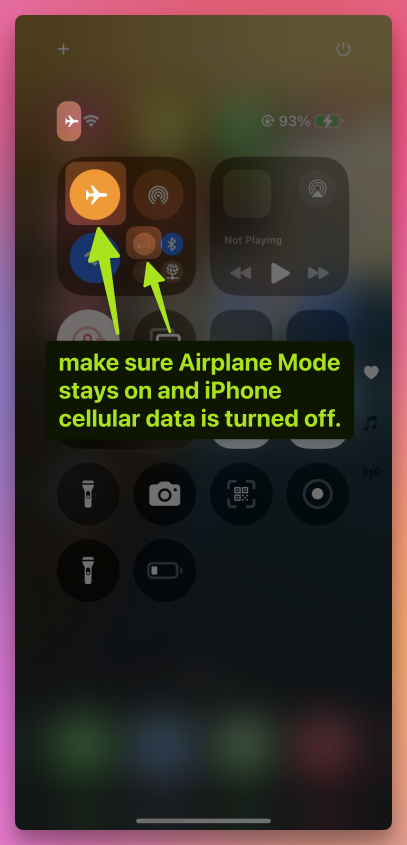
- Verify that Airplane Mode stays on and iPhone cellular data is switched off.
- Maintain an active Bluetooth connection 🔗.
- Turn off Wi‑Fi 📡 and Location Services 📍 on your iPhone
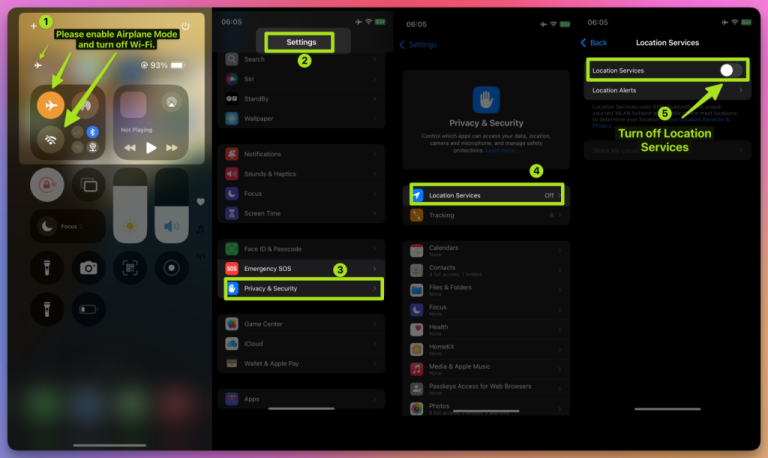
Wait 10 seconds ⏳. Then re‑enable each one.
8. Tips for Using iFlowGo in Pokémon GO, Monster Hunter Now, and Snapchat
Pokémon GO 🎮:
- Employ Joystick Mode to roam slowly around your typical area and capture Pokémon 🐾, minimizing detection risks 🚫.
- Use Teleport Mode to participate in gym battles or catch rare Pokémon.
Monster Hunter Now 🐉:
- Leverage Teleport Mode to rapidly reach monster spawn locations.
- Switch to Joystick Mode for short‑distance combat movement.
Snapchat 📸:
- Check in at various cities 🏙️ and snap photos to unlock distinctive location filters ✨.
9. Configure NextDNS for Teleports Over 15 km
For teleports greater than 15 km, you must set up NextDNS beforehand – otherwise your spoofing may become unreliable or stop working shortly after.
⚠️ Setup steps:
- 👉 Follow the NextDNS Setup Guide.
- Apply the provided NextDNS configuration to both your iPhone and Windows computer.
- Once done, you can safely teleport across long distances without losing location synchronization.
- Our tests show NextDNS maintains stable spoofing for 10+ hours, even during extended gameplay sessions.
💡 Tip:
- For teleports under 15 km, Steps 1–8 are sufficient.
- Nevertheless, we still recommend enabling NextDNS for short‑distance spoofing to gain extra stability.
10. All Set! Start Your Virtual Adventure
You have completed your first setup of iFlowGo ✅. Now you can freely roam in Pokémon GO, Monster Hunter Now, Snapchat, and other apps—explore the virtual world on your terms! 🚀 iFlowGo, Spoof Anywhere, Anytime — Change Your iPhone GPS Instantly. No jailbreak, no cracked apps. 🏆 #1 iOS spoofing tool on Patreon. ✅ 100% Safe.