How to use PGFlyer on macOS
Carefully following these instructions will have iFlowGo operational in no time!
🔹 Step 1: Download and Prepare the Installation File
1.Once downloaded, place the installer on your desktop for easy access.
2.Double‑click the ZIP archive to unzip it. The iFlowGo app icon will appear.
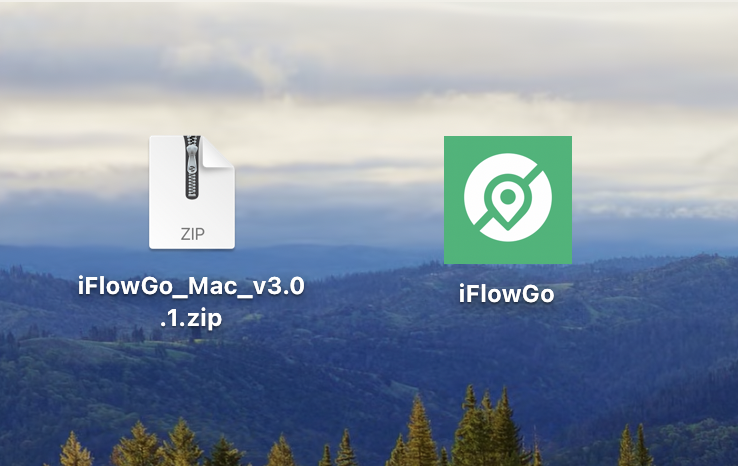
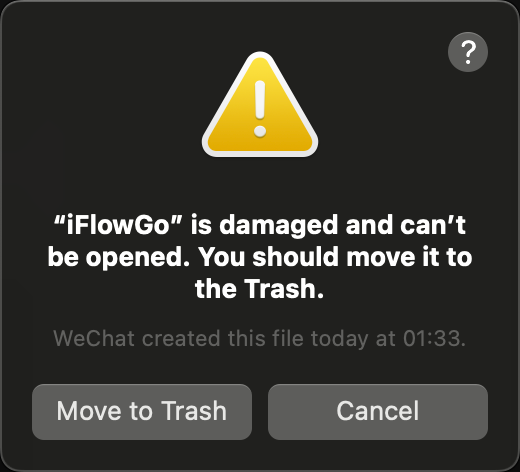
3.⚠️ Do not launch iFlowGo yet! First we must adjust system permissions; otherwise you might see a “iFlowGo” is damaged and can't be opened... warning.
🔹 Step 2: Open the Terminal App
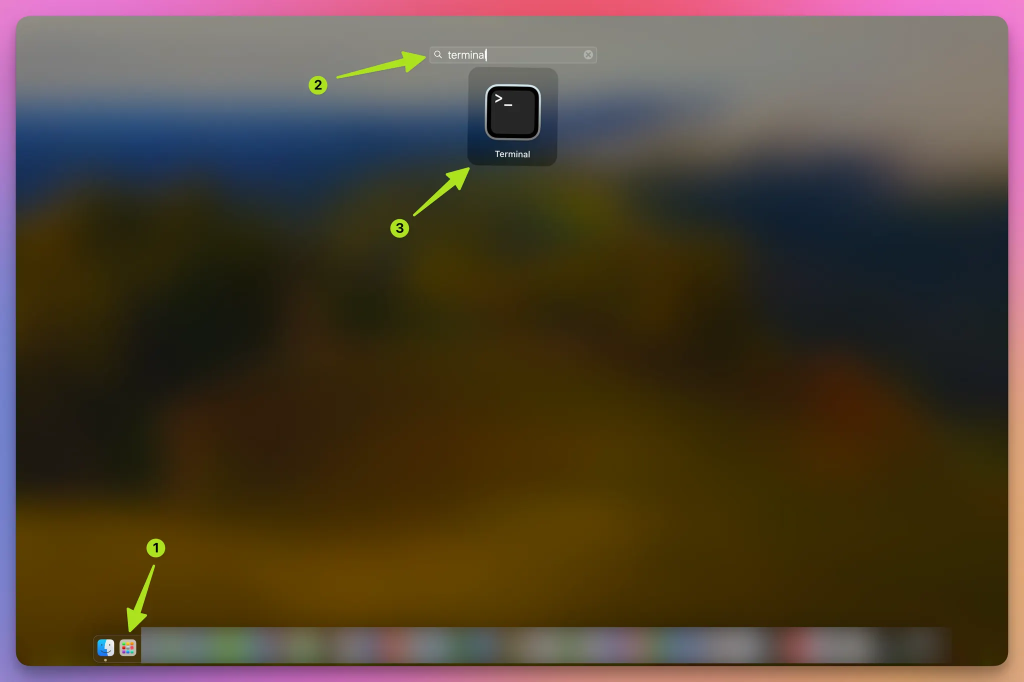
- On your Mac, open Launchpad (the rocket symbol).
- Search for Terminal in the bar.
- Click to start it.
📸 Example:
🔹 Step 3: Run the Fix Command
- In Terminal, enter this command (you can paste it):
- Next, drag and drop the “iFlowGo.app” file into the Terminal window. The file path will appear automatically after the command.
- Hit Enter (Return) to execute it.
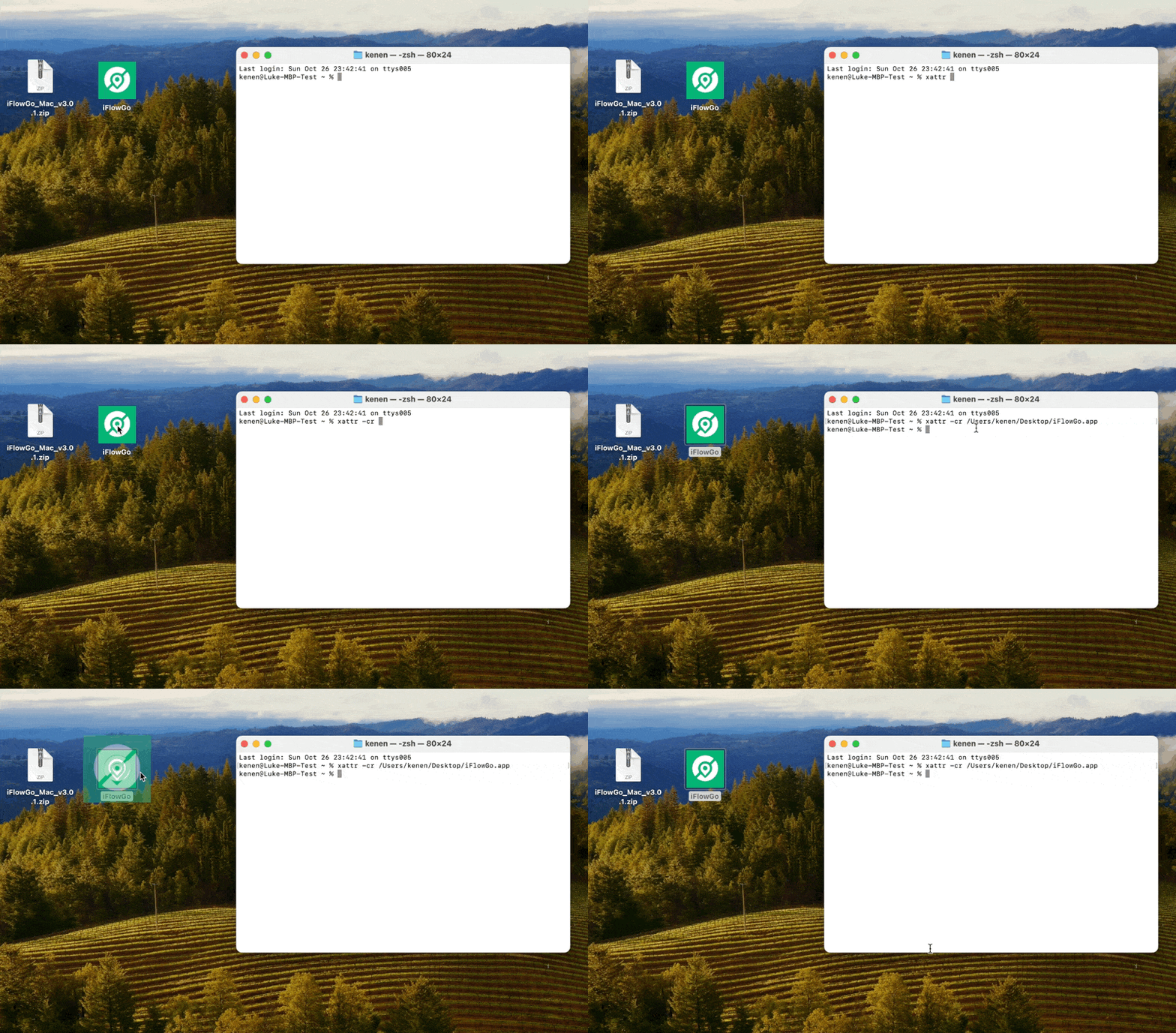
🎥A video tutorial is also available here:
▶️ https://www.youtube.com/watch?v=yqF0xpfJVRA
🔹 Step 4: Open iFlowGo and Log In with Discord
⚠️ Important Note: When logging in with Discord, please use the Chrome browser. If you try to log in with Firefox, you may run into Discord authorization errors. Choosing Chrome ensures a smooth login and proper authorization.
- Now double‑click iFlowGo.app to launch it.
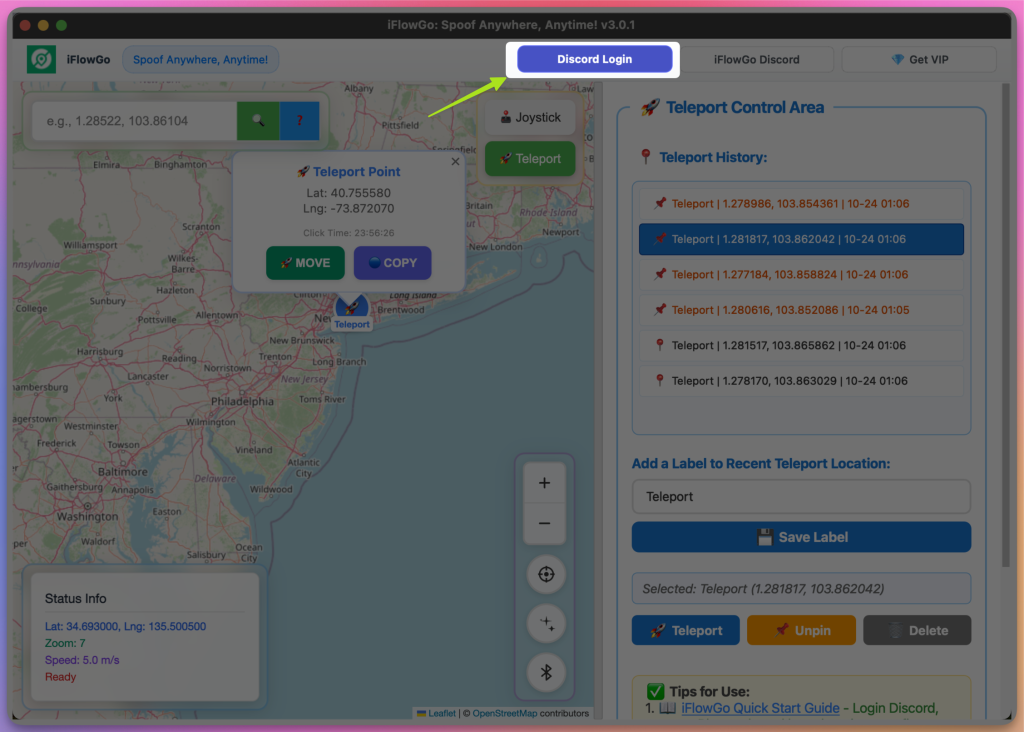
- On the login screen, press “Login with Discord.”
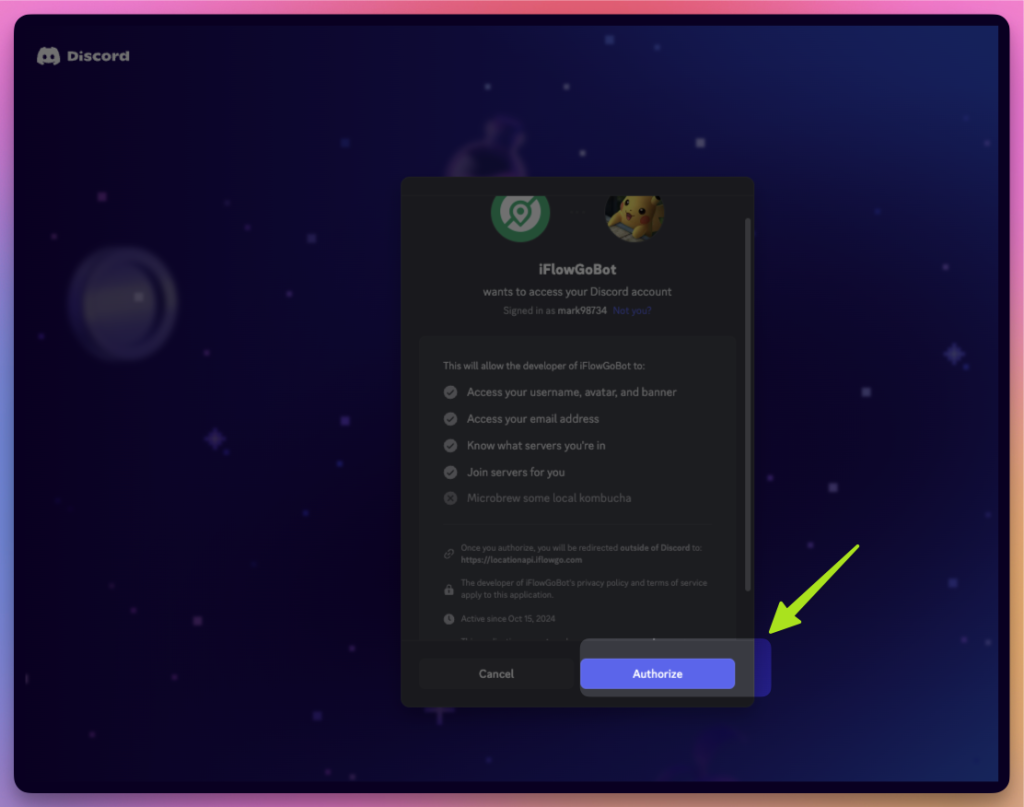
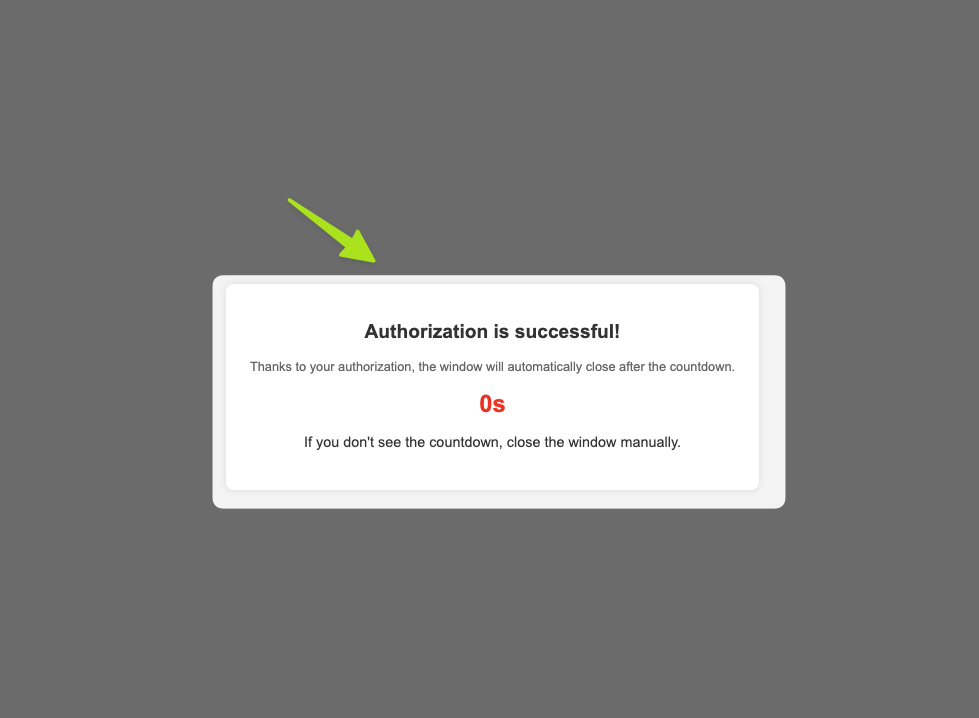
- Sign into your Discord account to confirm your VIP status.
📸 Example:
🔹 Step 5: Confirm Your Login Status
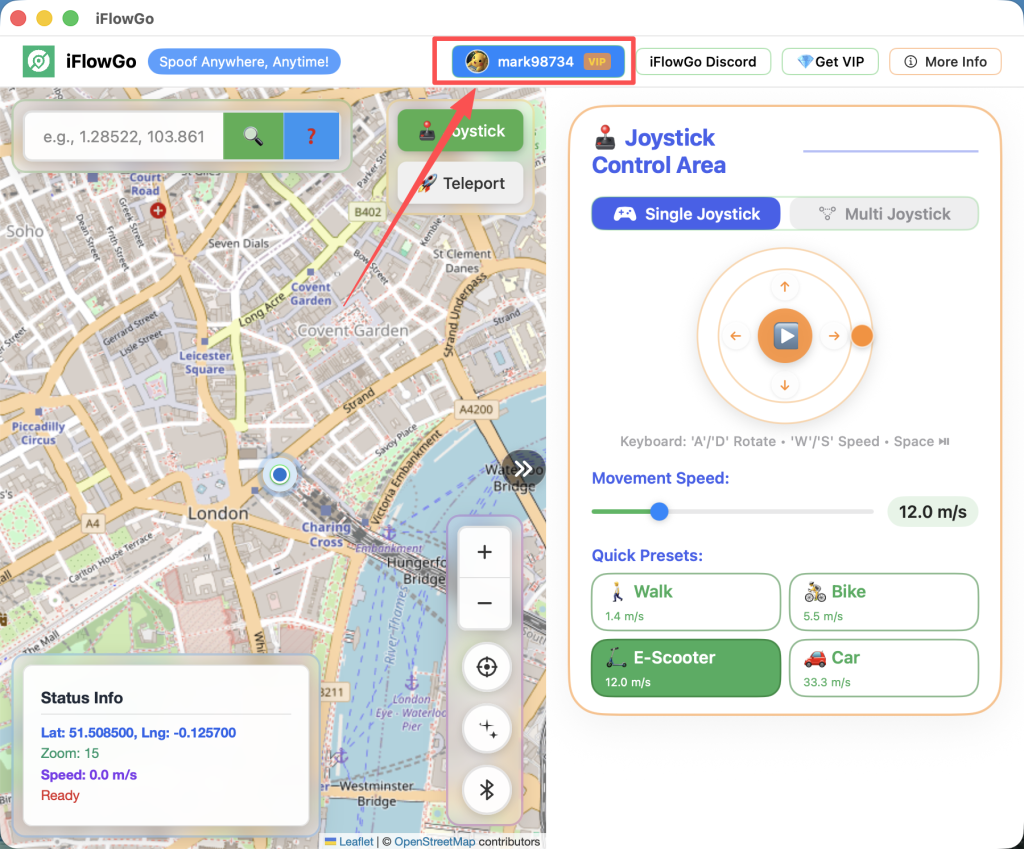
After logging in, return to the main screen.
Your Discord username and profile picture should now be visible — that confirms you’re verified!
📸 Example:
🔹 Step 6: Start the Bluetooth Connection
🔵 Important Bluetooth Pairing Tip (Mac & iPhone)
When linking your MacBook and iPhone via Bluetooth, be sure both devices are properly paired with each other. Bluetooth pairing must be consistent on both ends. If one device is paired but the other has forgotten it, the connection may fail or the iPhone may not appear.
✅ Recommended Fix (Strongly Suggested)
To establish a clean and reliable Bluetooth environment, follow these recommendations:
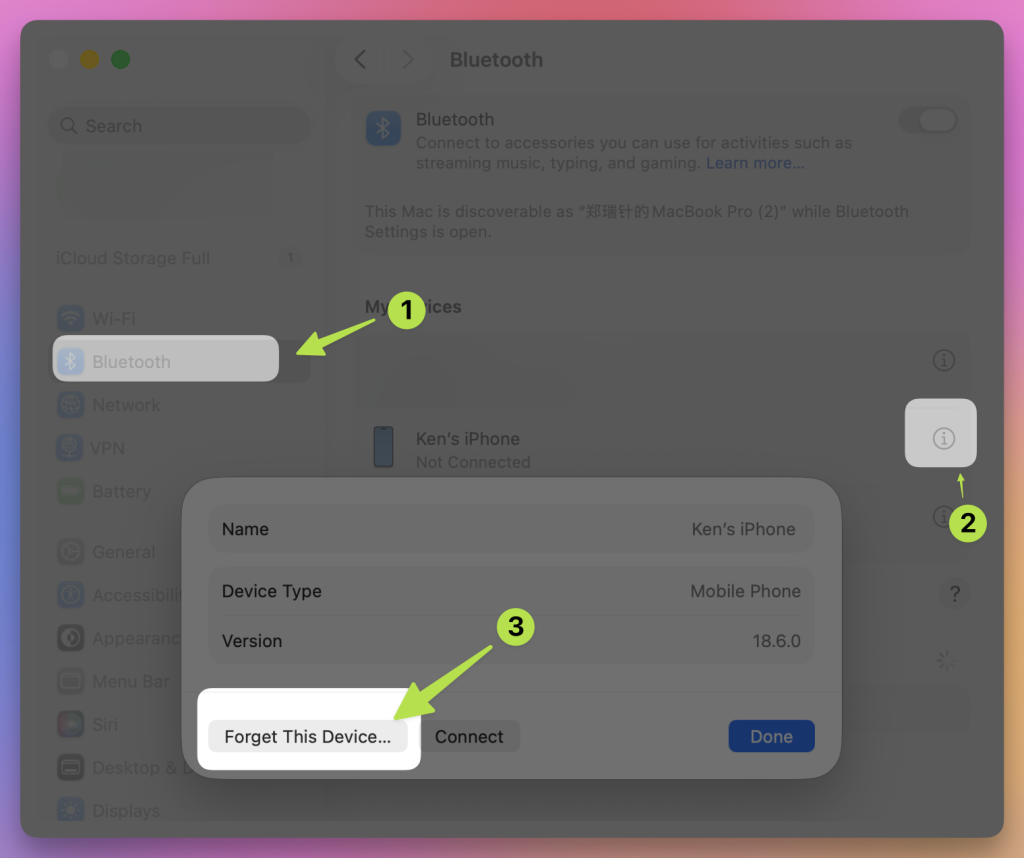
- Open Bluetooth settings on your MacFind your iPhone Bluetooth
- Click the ⓘ (info) button
- Choose “Forget This Device”
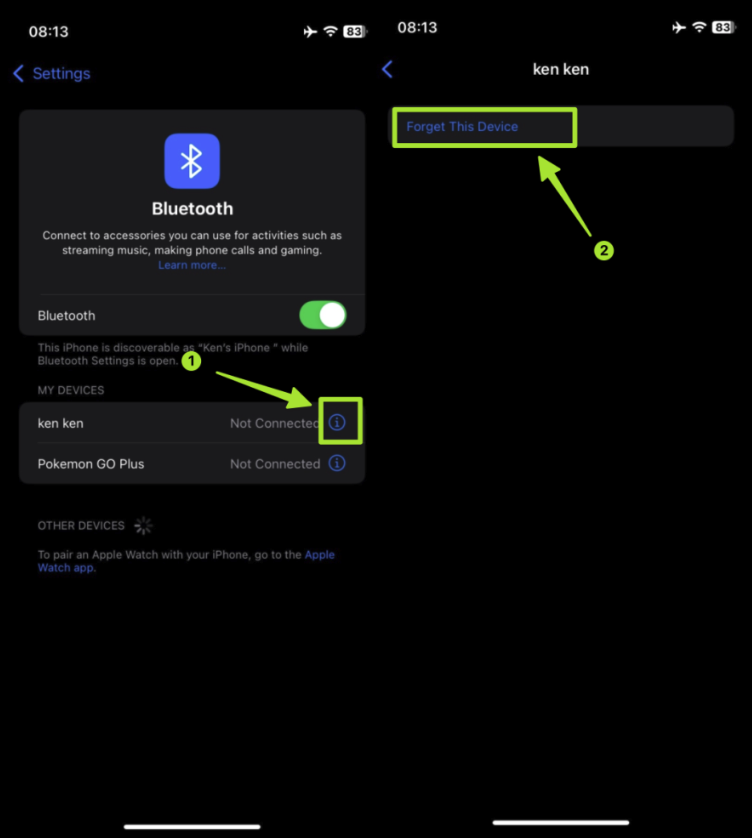
- Open Bluetooth settings on your iPhoneFind your Mac Bluetooth
- Tap “Forget This Device”
- Press the “Scan Device” button inside iFlowGo.
- Keep your iPhone Bluetooth settings page open — this is crucial. ⚠️ If the iPhone is not on the Bluetooth settings screen, your Mac won’t discover it.
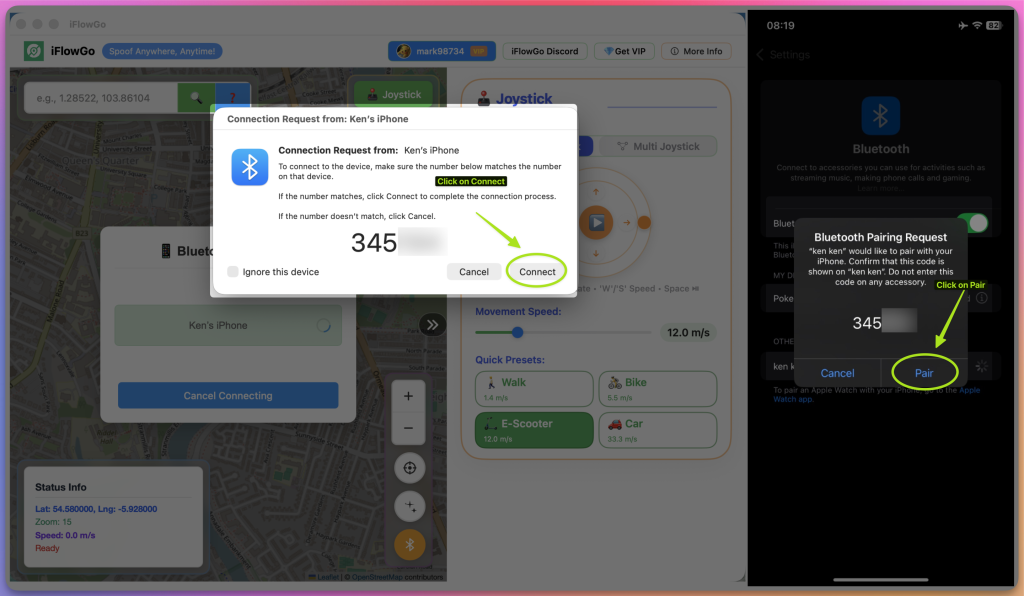
- Pair Mac Bluetooth Device to your iPhone Bluetooth.
📸 Example:

🔹 Step 7: Properly Activate Bluetooth on Your iPhone
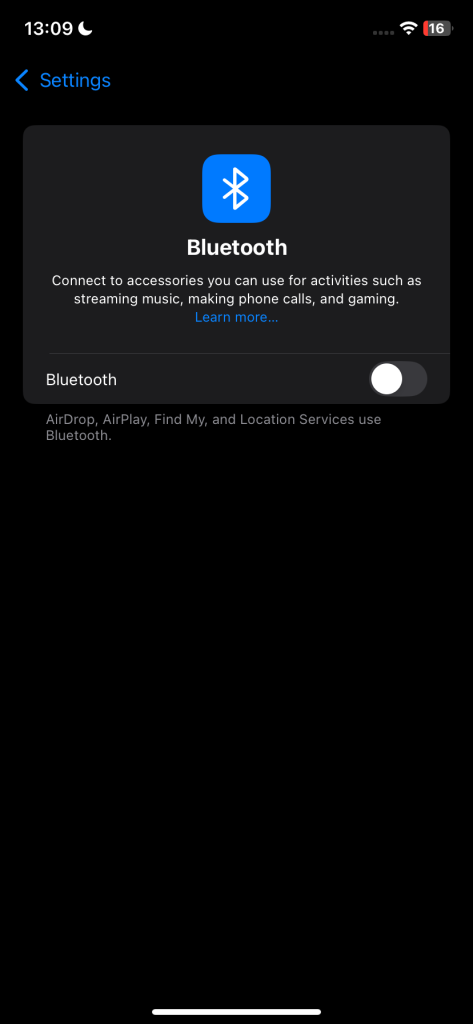
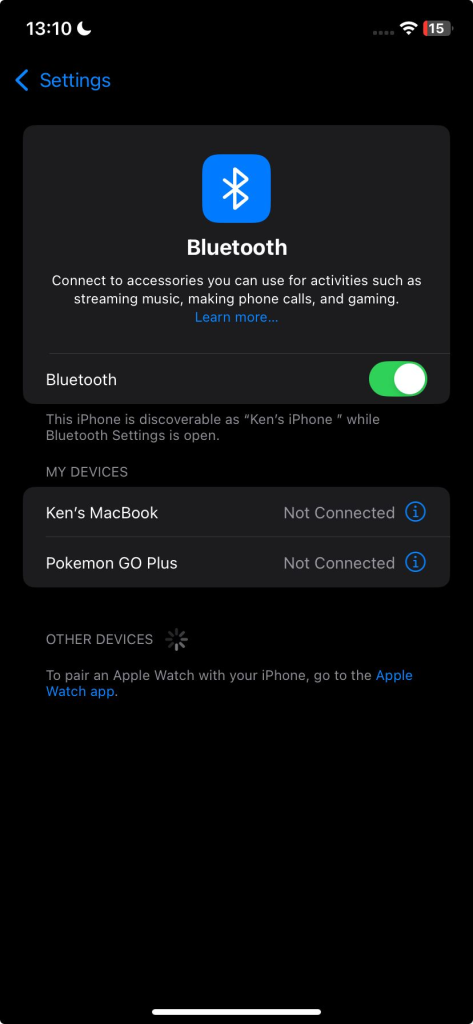
- On your iPhone, navigate to Settings → Bluetooth.
- Turn Bluetooth off, wait 1–5 seconds, then turn it back on.
- Your Mac’s iFlowGo app should now detect your phone.
📸 Example:
🔹 Step 8: Connect Your Device
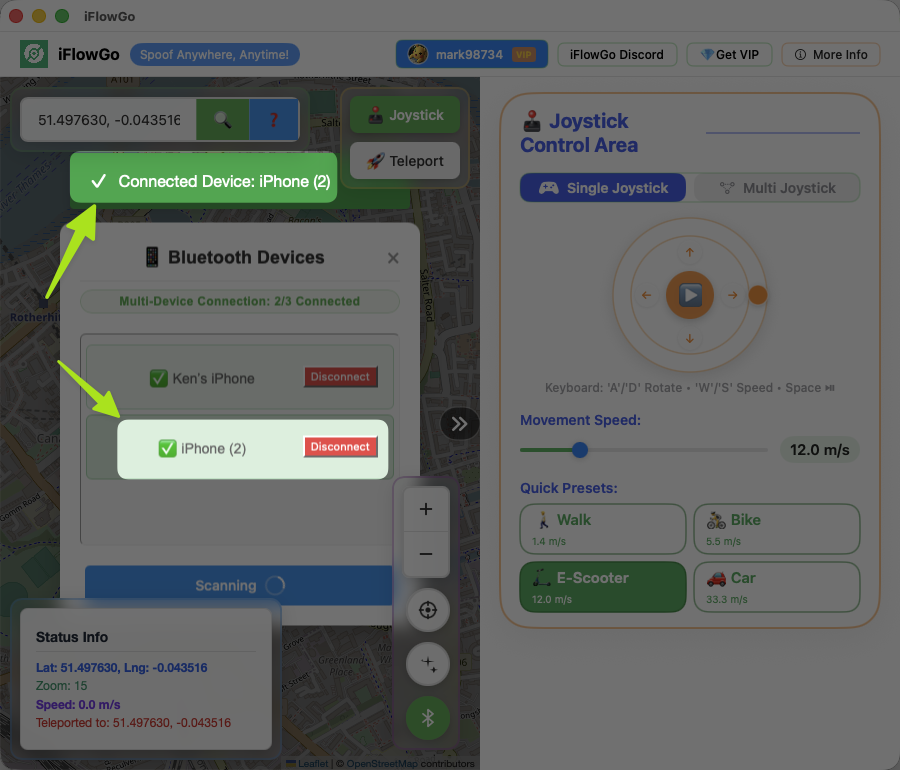
- Once iFlowGo finds your iPhone, the device name appears on screen.
- Press the “Connect” button next to it.
- If your phone doesn’t show up, ensure it’s still on the Bluetooth page — try toggling Bluetooth off and on again, then re‑scan.
📸 Example:

🔹 Step 9: Connection Successful 🎉
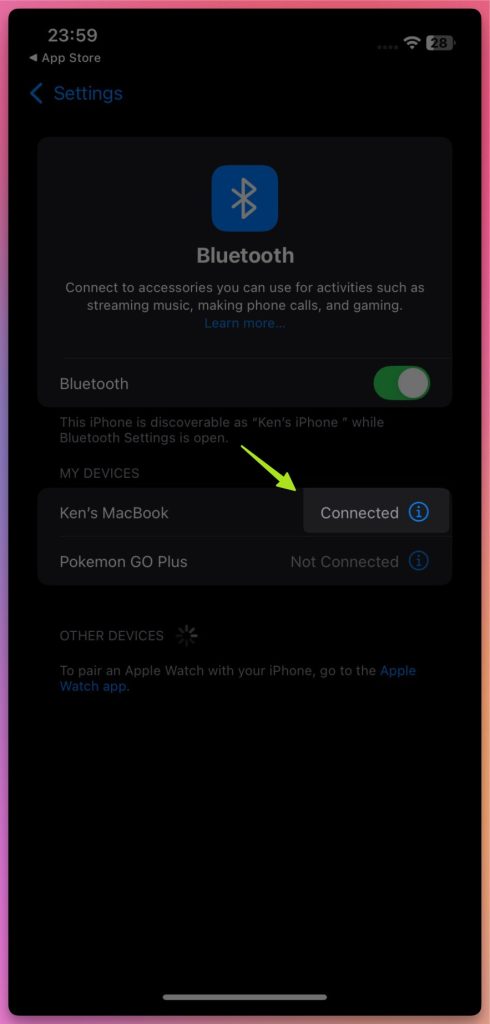
When the “✅ Connected Device” message appears, congratulations!
Your Mac and iPhone are now linked via Bluetooth, and you can start using iFlowGo to freely alter your location.
📸 Example:
10. How to Fix the Map Not Showing Your Location
If the map doesn’t display your position:
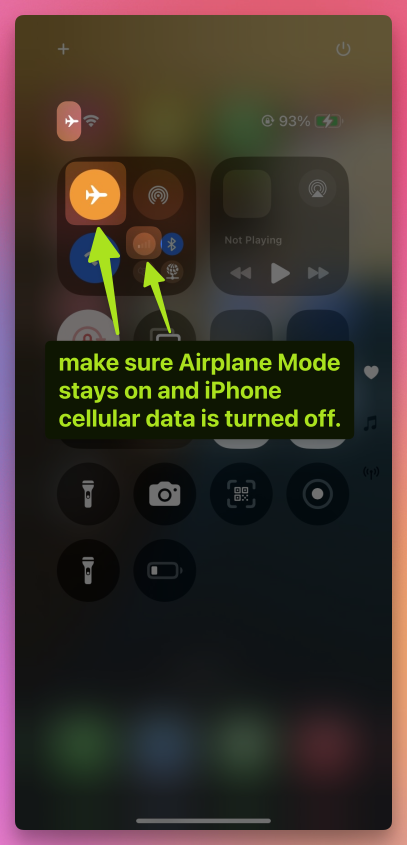
- Verify that Airplane Mode remains on and iPhone cellular data is disabled.
- Maintain the Bluetooth connection active 🔗.
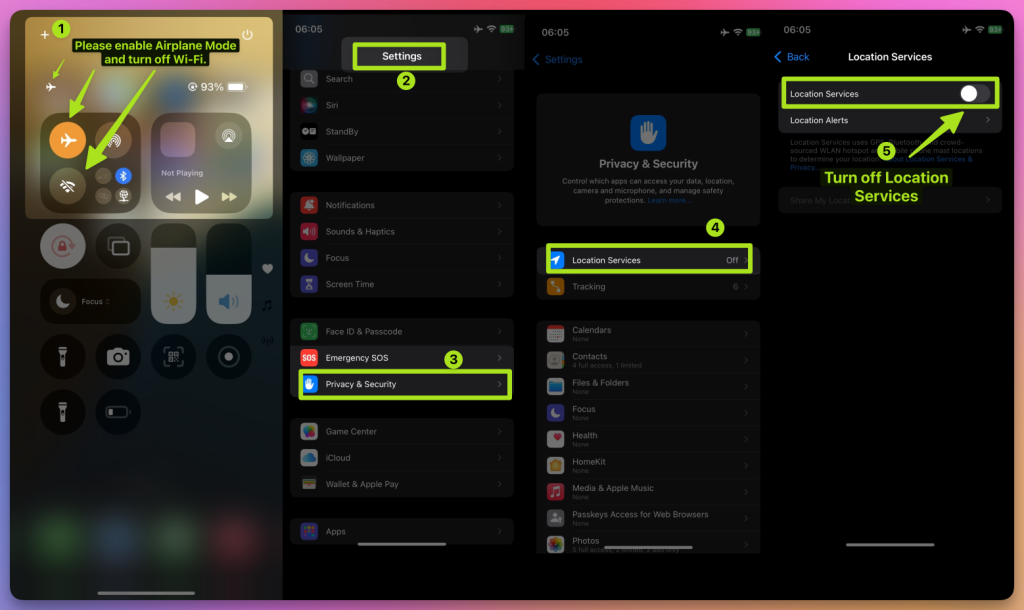
- Turn off Wi-Fi 📡 and Location Services 📍 on your iPhone
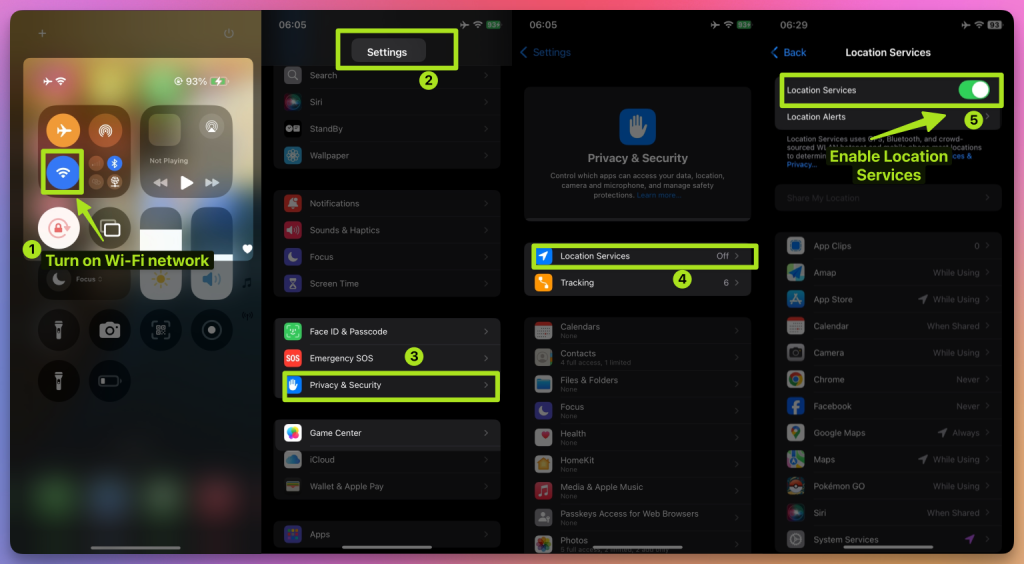
- Wait 10 seconds ⏳. Then turn them back on.
11. Configure NextDNS for Teleports Over 15 km
If you plan to teleport more than 15 km, you must configure NextDNS first — otherwise your spoofing may become unstable or stop working after a short time.
⚠️ Setup steps:
- 👉 Follow the NextDNS Setup Guide.
- Apply the provided NextDNS settings on both your iPhone and Windows computer.
- Once done, you can safely teleport long distances without losing location sync.
- In our tests, NextDNS keeps spoofing stable for 10+ hours, even during extended gameplay.
💡 Tip:
- For teleports under 15 km, Steps 1–9 are sufficient.
- But even for short-distance spoofing, we still recommend enabling NextDNS for extra stability.
12. All Set! Start Your Virtual Adventure
You’ve successfully set up iFlowGo for the first time ✅. Now you can freely move your location in Pokémon GO, Monster Hunter Now, Snapchat, and more—explore the virtual world your way! 🚀 iFlowGo, Spoof Anywhere, Anytime — Change Your iPhone GPS Instantly. No jailbreak, no cracked apps. 🏆 #1 iOS spoofing tool on Patreon. ✅ 100% Safe.