How to use PGFlyer on iPhone and Android
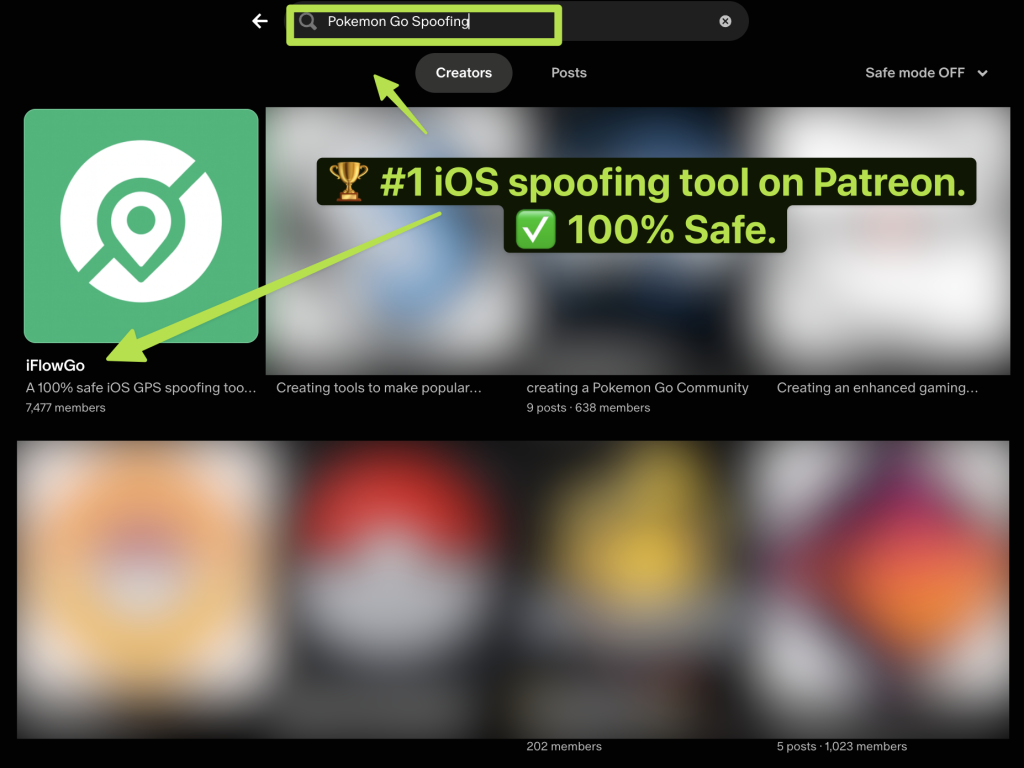
Currently, iFlowGo stands as the top location spoofing tool on the market. By pairing an Android device with an iPhone, you can spoof the GPS of up to 3 iPhones simultaneously — each running the official Pokémon GO app — with 100% safety and no jailbreak required. It's also compatible with Monster Hunter Now and Snapchat, among others.
This tutorial covers everything from installing iFlowGo to establishing a Bluetooth connection 🔗 and mastering its two primary modes (Joystick and Teleport), so you can start using it immediately.
⚠️ Important: Even for short hops, we suggest using NextDNS for optimal reliability (our tests show it maintains spoofing for over 10 hours). For teleports within 15 km, simply follow Steps 1–8. If you need to jump more than 15 km, make sure to complete Step 9 (Configure NextDNS for Teleports Over 15 km) to ensure a stable location.
1. Before You Begin
Ensure the following items are on hand:
- ✅ iFlowGo is installed and functioning correctly.
- 🔑 A VIP or trial account (Bluetooth pairing won't work without one).
- 📱 Both an iPhone (iOS) and an Android device.
2. Turn Off Bluetooth Connections
Bluetooth must be switched off before connecting; otherwise, the connection may not succeed.
- On your Android: Disable Bluetooth → Confirm no devices are connected.
- On your iPhone 📱: Disable Bluetooth as well.
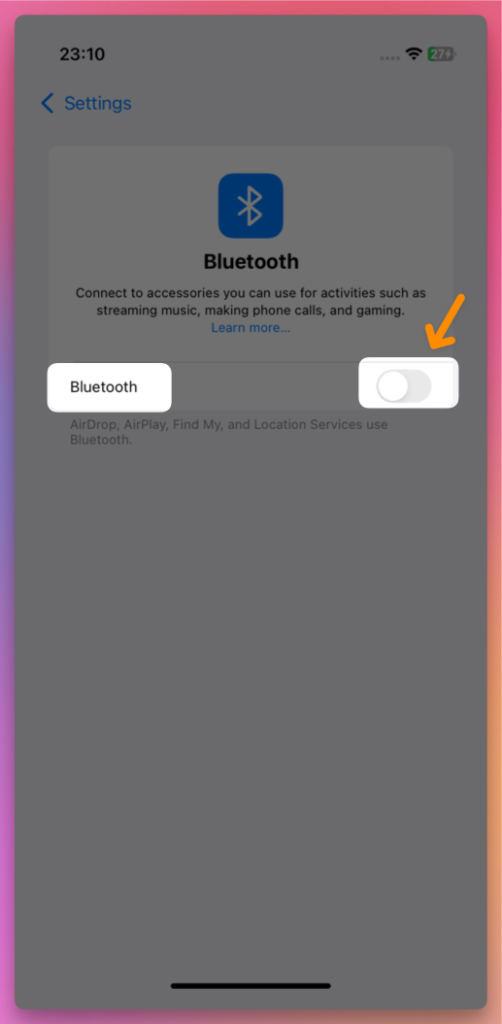
- Then wait 3–10 seconds.
3. Turn On Bluetooth on Your Computer
- Now, re-enable Bluetooth on both your iPhone and Android.
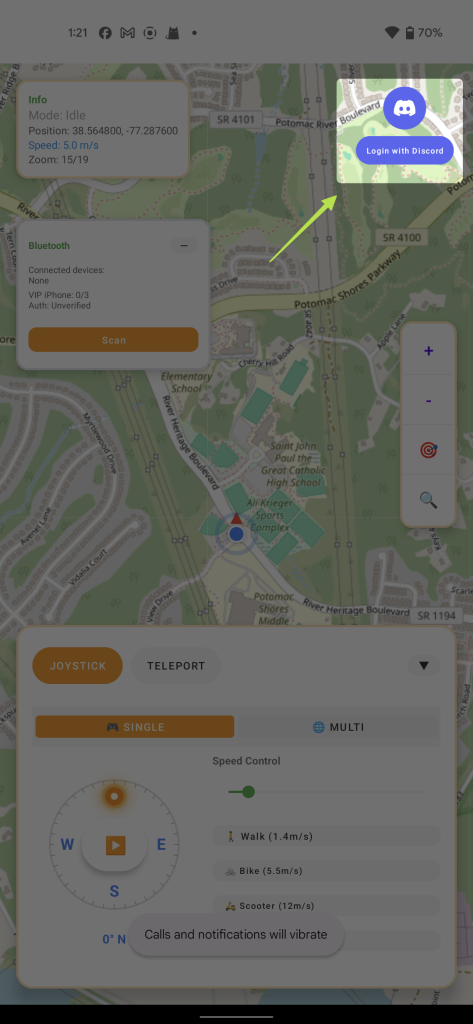
4. Launch iFlowGo and Log in with Discord
- Open iFlowGo → Click the Discord Login button.
- The browser will redirect to an authorization page → Press Authorize ✅.
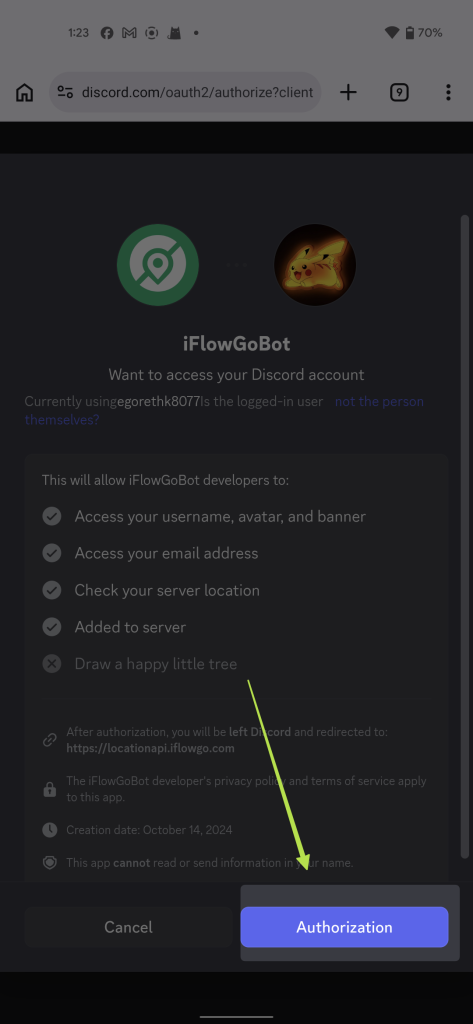
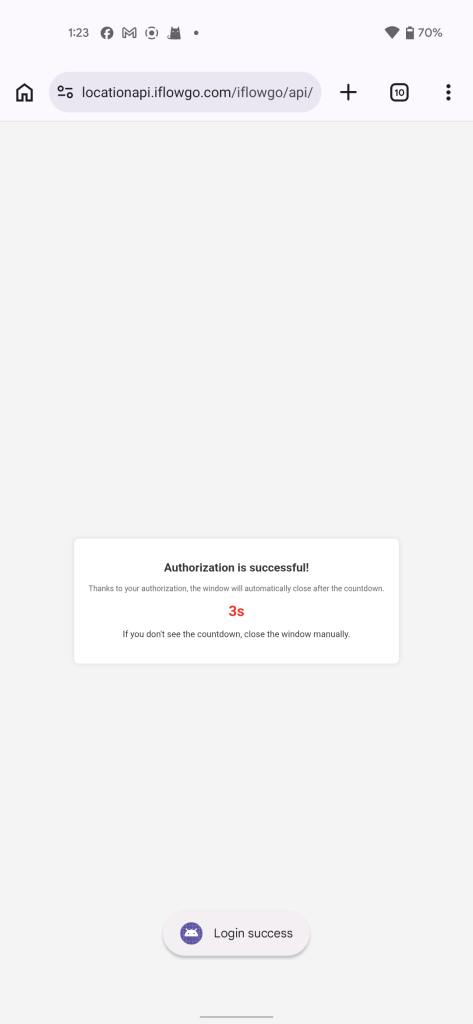
- Return to iFlowGo; it will log you in automatically.
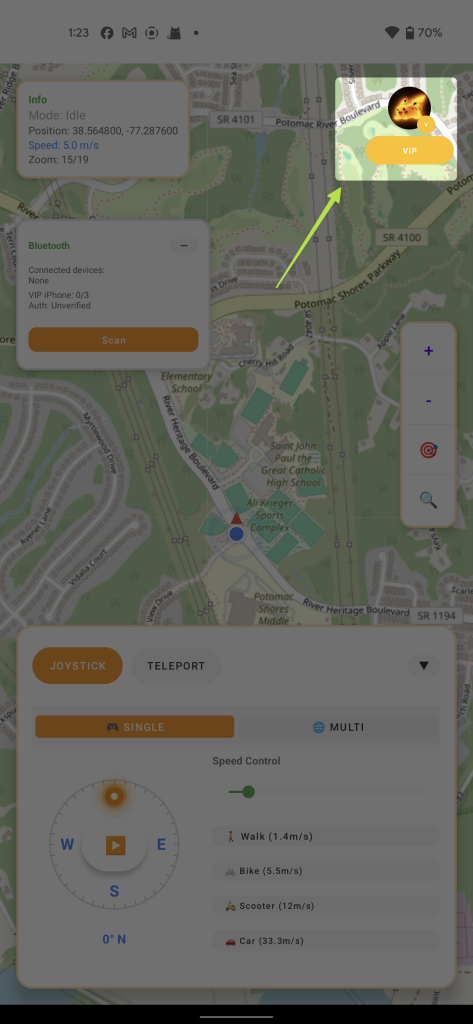
5. Bluetooth Connection Steps
- Before proceeding, first disable Bluetooth on both your Android and iPhone, wait 3 to 10 seconds (this clears the Bluetooth cache), and then re-enable Bluetooth on each device.
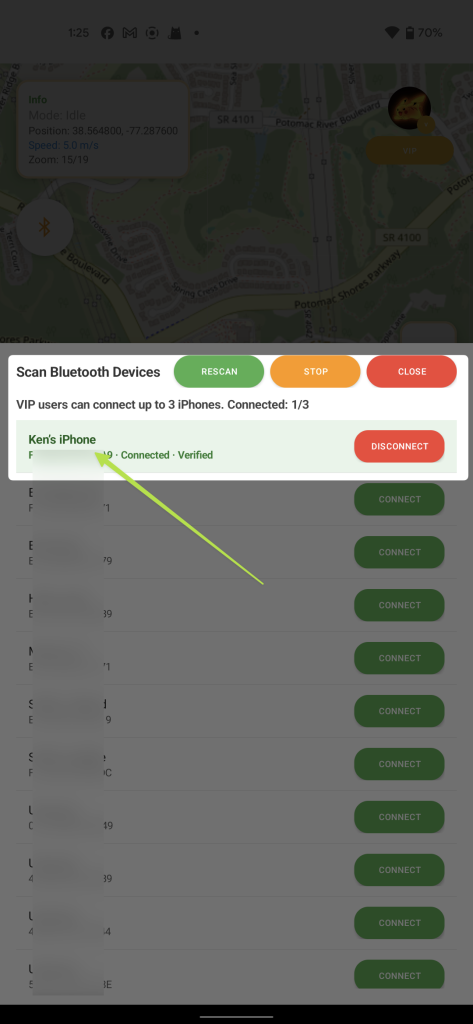
- Inside iFlowGo, tap the Bluetooth icon → Scan Button → Pick a Bluetooth device and press the Connect Button.
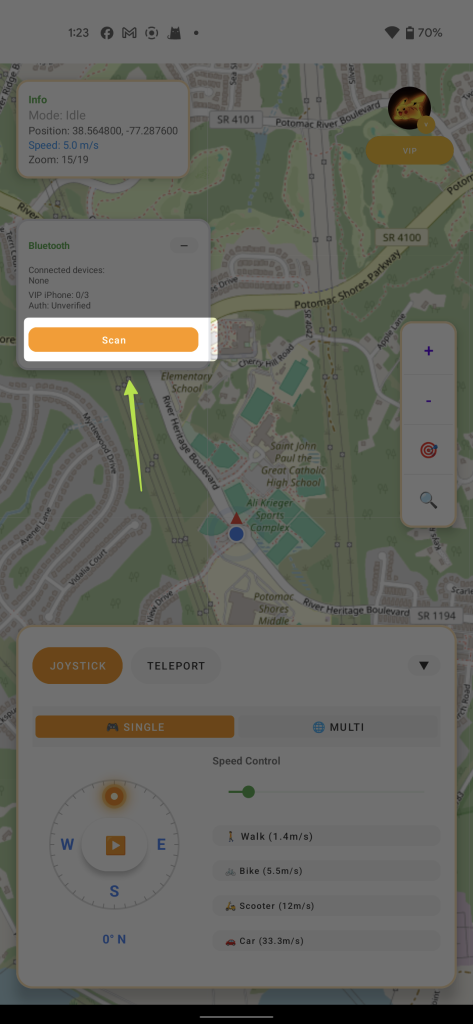
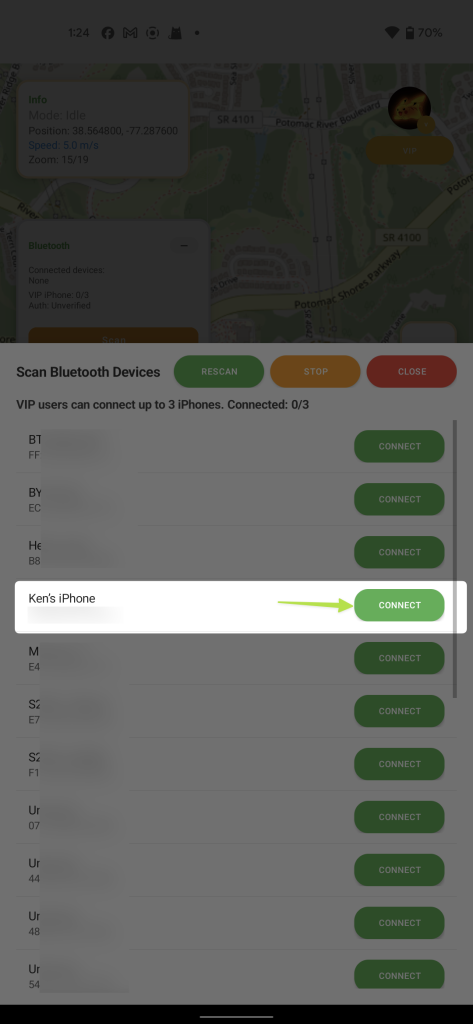
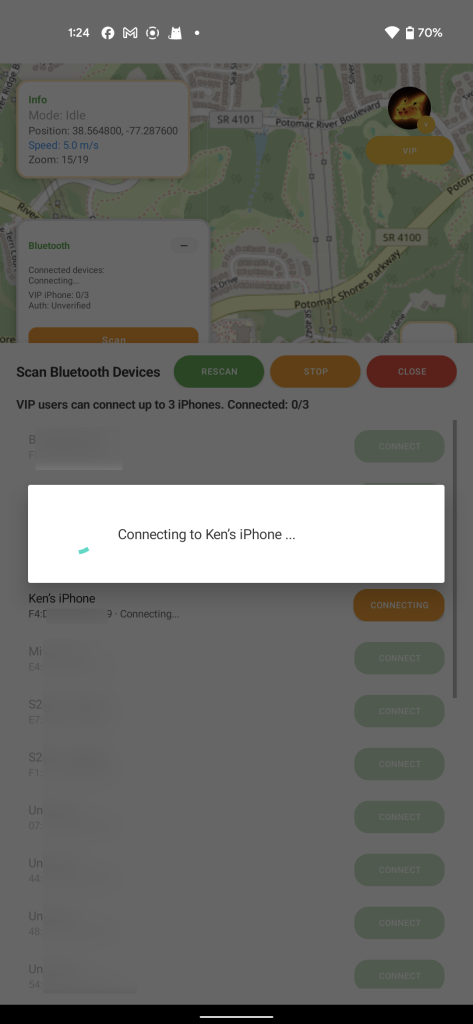
- Proceed through the remaining steps until you encounter the Authentication Successful screen — once that appears, you're successfully connected!
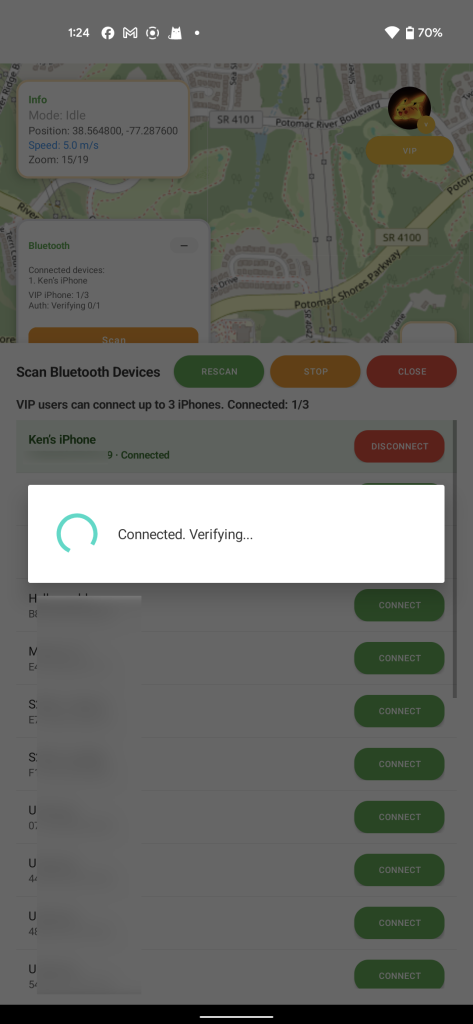
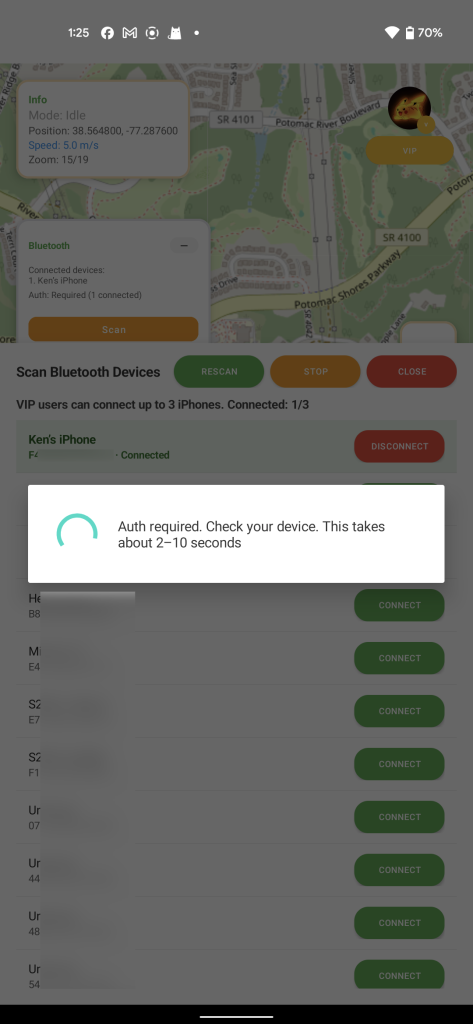
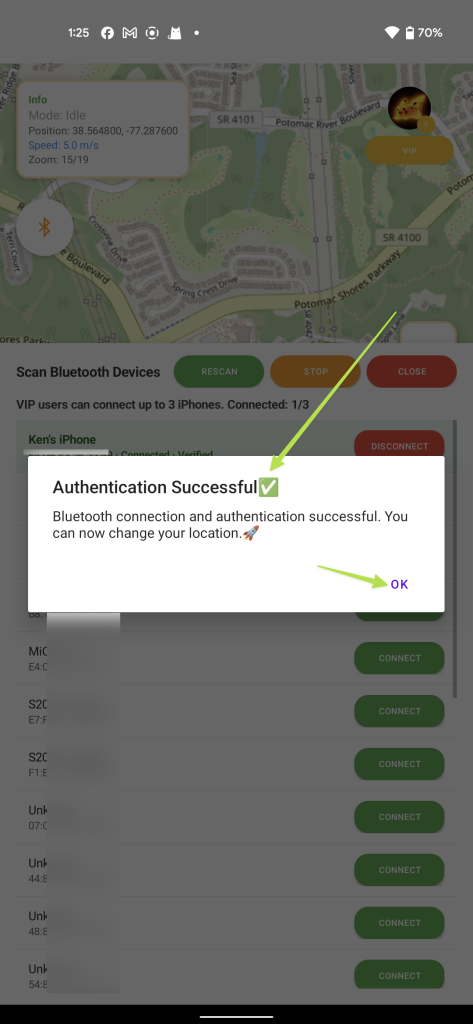
- This displays your Bluetooth connection list — any paired devices appear at the top. You can connect up to 3 iPhones at once to spoof their locations in parallel. However, if this is your initial attempt, we advise starting with a single device and then following the remaining instructions.
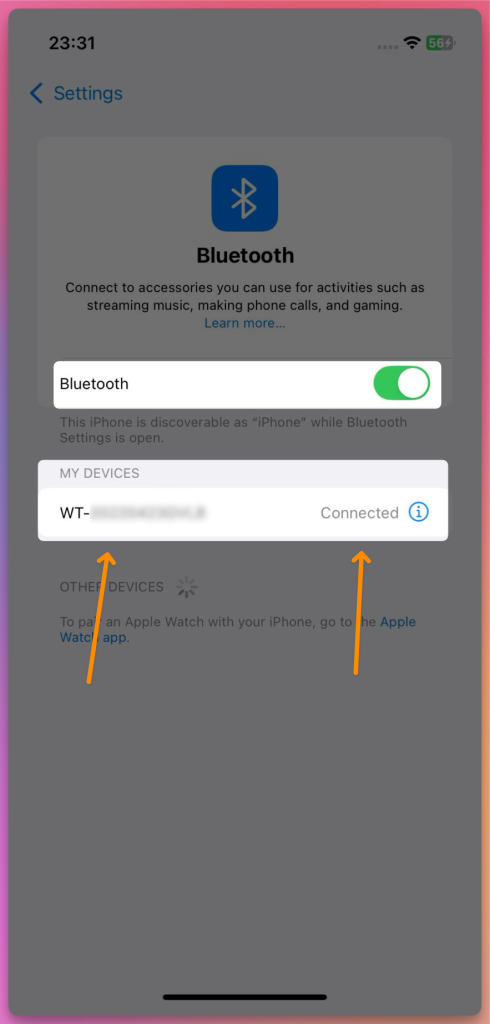
- Your iPhone will also display a "Connected" indication!
6. Choose a Location Mode
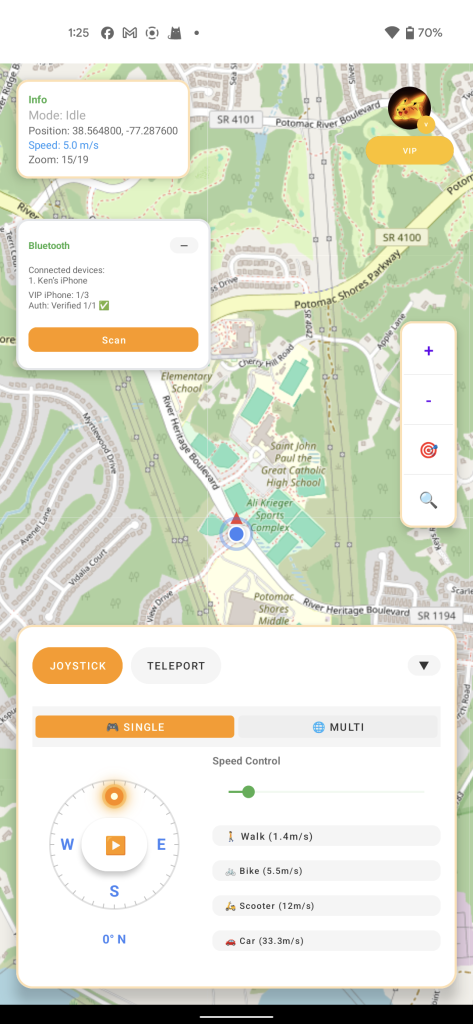
Now you can change your location!
- Joystick Mode 🕹️: Perfect for gradual movement in Pokémon GO, mimicking real walking 🚶♂️.
- Teleport Mode 🚀: Instantly jump to any place within 15 km, ideal for swiftly reaching hunting zones in Monster Hunter Now 🐲.
7. How to Fix the Map Not Showing Your Location
If the map fails to display your current position:
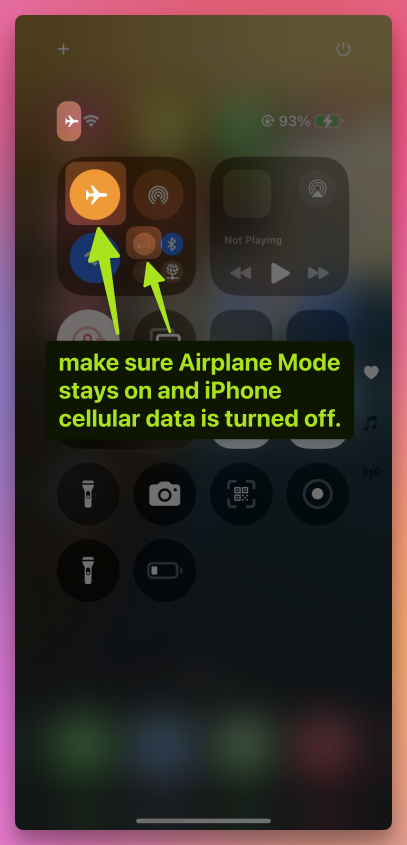
- Verify that Airplane Mode remains enabled and that iPhone cellular data is switched off.
- Maintain an active Bluetooth connection 🔗.
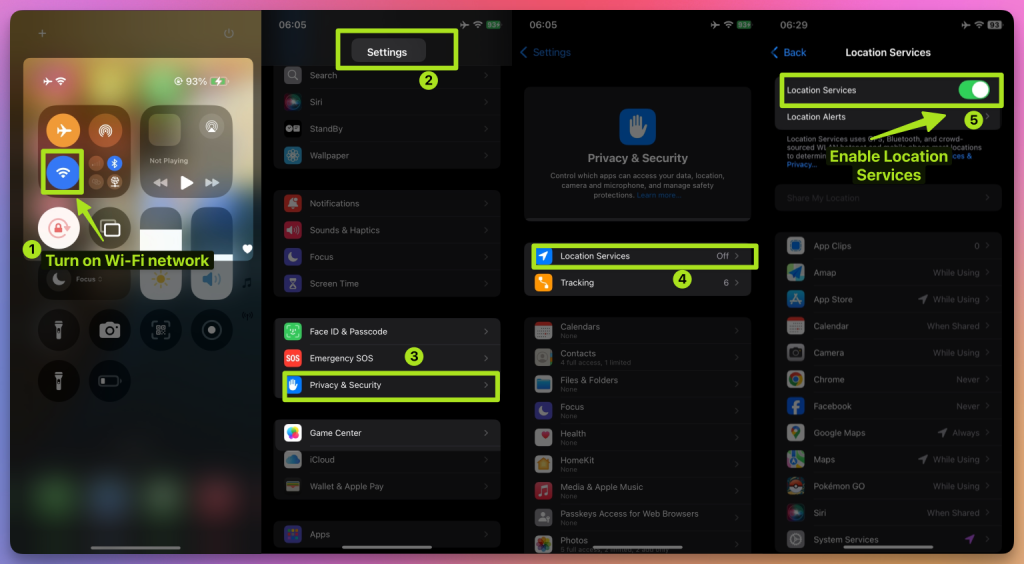
- Disable both Wi-Fi 📡 and Location Services 📍 on your iPhone.
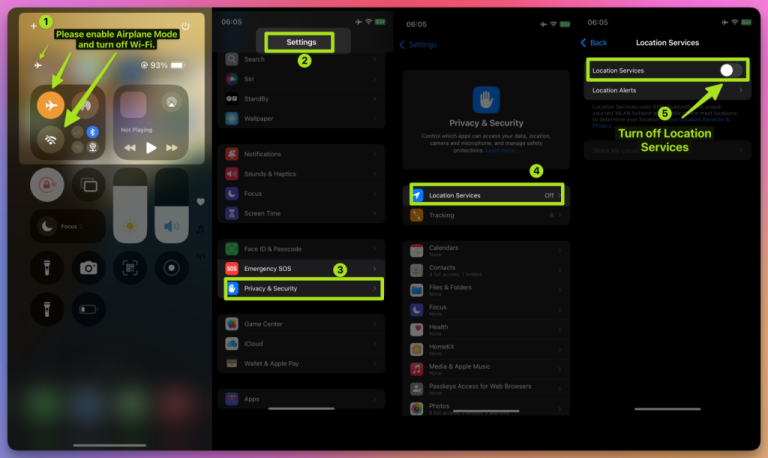
Wait 10 seconds ⏳. Then re-enable both settings.
8. Tips for Using iFlowGo in Pokémon GO, Monster Hunter Now, and Snapchat
Pokémon GO 🎮:
- Employ Joystick Mode to stroll slowly through your familiar territory and catch Pokémon 🐾 while minimizing ban risk 🚫.
- Use Teleport Mode to dive into gym battles or snag rare Pokémon.
Monster Hunter Now 🐉:
- Leverage Teleport Mode for rapid access to monster spawn points.
- Switch to Joystick Mode for close‑range combat movement.
Snapchat 📸:
- Check in and snap photos across different cities 🏙️ to unlock exclusive location filters ✨.
9. Configure NextDNS for Teleports Over 15 km
If you plan to teleport more than 15 km, you must set up NextDNS beforehand — otherwise your spoofing may become unstable or fail shortly after.
⚠️ Setup steps:
- 👉 Follow the NextDNS Setup Guide.
- Apply the provided NextDNS configurations to both your iPhone and Windows computer.
- Once configured, you can safely perform long‑distance teleports without losing location sync.
- Our testing shows NextDNS keeps spoofing stable for 10+ hours, even during extended play sessions.
💡 Tip:
- For jumps under 15 km, Steps 1–8 are sufficient.
- However, even for short‑range spoofing, we still recommend enabling NextDNS for added stability.
10. All Set! Start Your Virtual Adventure
You've completed the initial iFlowGo setup ✅. Now you're free to reposition your location in Pokémon GO, Monster Hunter Now, Snapchat, and more — explore the virtual world on your own terms! 🚀. Spoof Anywhere, Anytime — Change Your iPhone GPS Instantly. No jailbreak, no cracked apps. 🏆 #1 iOS spoofing tool on Patreon. ✅ 100% Safe.